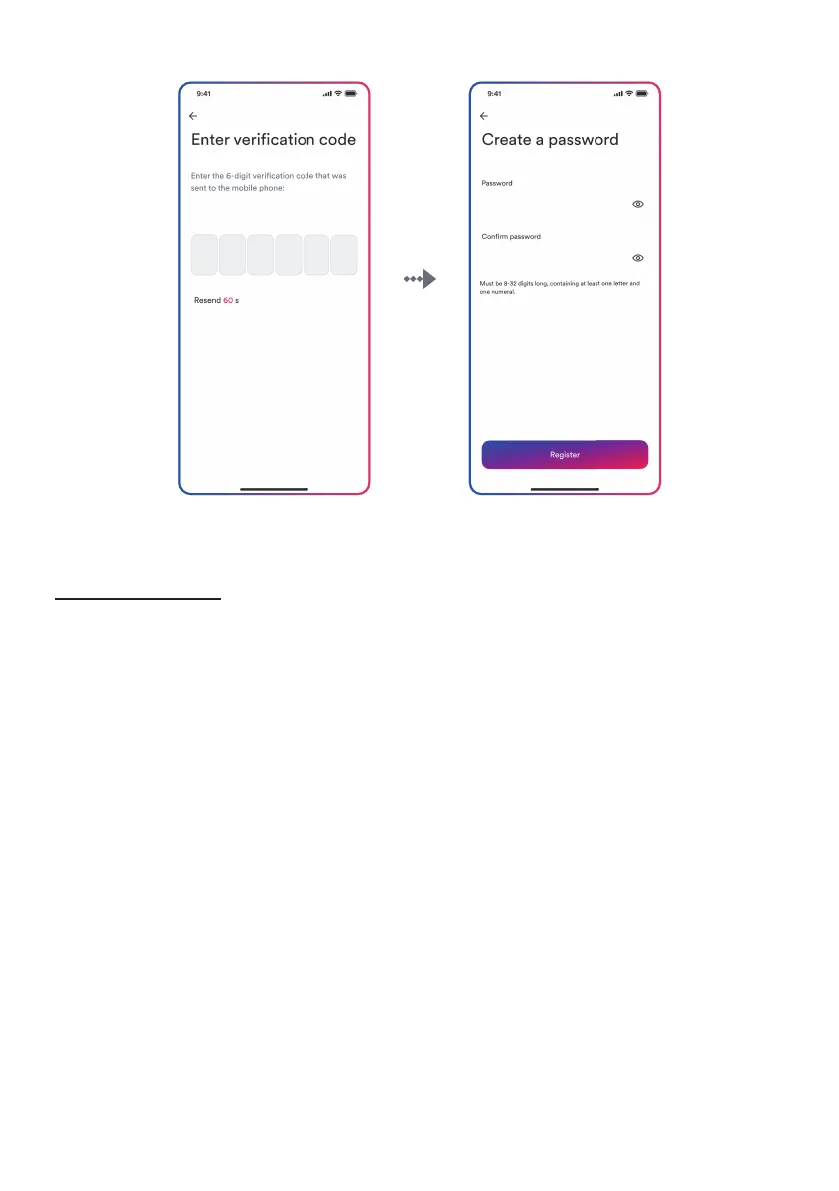
8.4 Create a plant
Step 4 Step 5
Step 1:
Open Solplanet App to enter the login screen, enter the account name and password,
and tap “Log in” to enter the next screen.
Step 2:
Tap the symbol “+” to enter the next screen, and tap “Create or modify a plant”, then the
camera of the mobile automatically turns on, and scan the QR code of the WiFi stick to
enter the next screen, tap “Create new plant” to the next screen.
Step 3:
Enter the PV plant information in all fields marked with a red asterix, and tap “Create” to
enter the next screen.
Step 4:
After the planet created, tap “Add dongle to the plant”, and tap “Add to plant” to the next
screen.
Step 5:
Tap “Connect to dongle access point”, the smart mobile will connect to WiFi stick hot-
sport automatically. The inverter list can be found after the connection successful.
Step 6:
Tap the inverter serial number that matches your inverter, then the setting parameter
can be set. The detail description can be found at section 8.5.
UM0035_ASW05-12kH-T2-T3_EN_V01_0523





 To Next Page