"Handycam" User Guide
PrintSearch
Operation Search
Before use
Getting started
Recording
Playback
Playing images on a TV
Saving images with an external
device
Using the Wi-Fi function
Customizing your camcorder
Troubleshooting
Maintenance and precautions
Contents list
Top page > Saving images with an external device > Saving images on an external media
device > Saving the desired images in the camcorder to the external media device (models with internal
memory)
Saving the desired images in the camcorder to the external media
device (models with internal memory)
You can save desired images in the camcorder to the external media device.
Notes
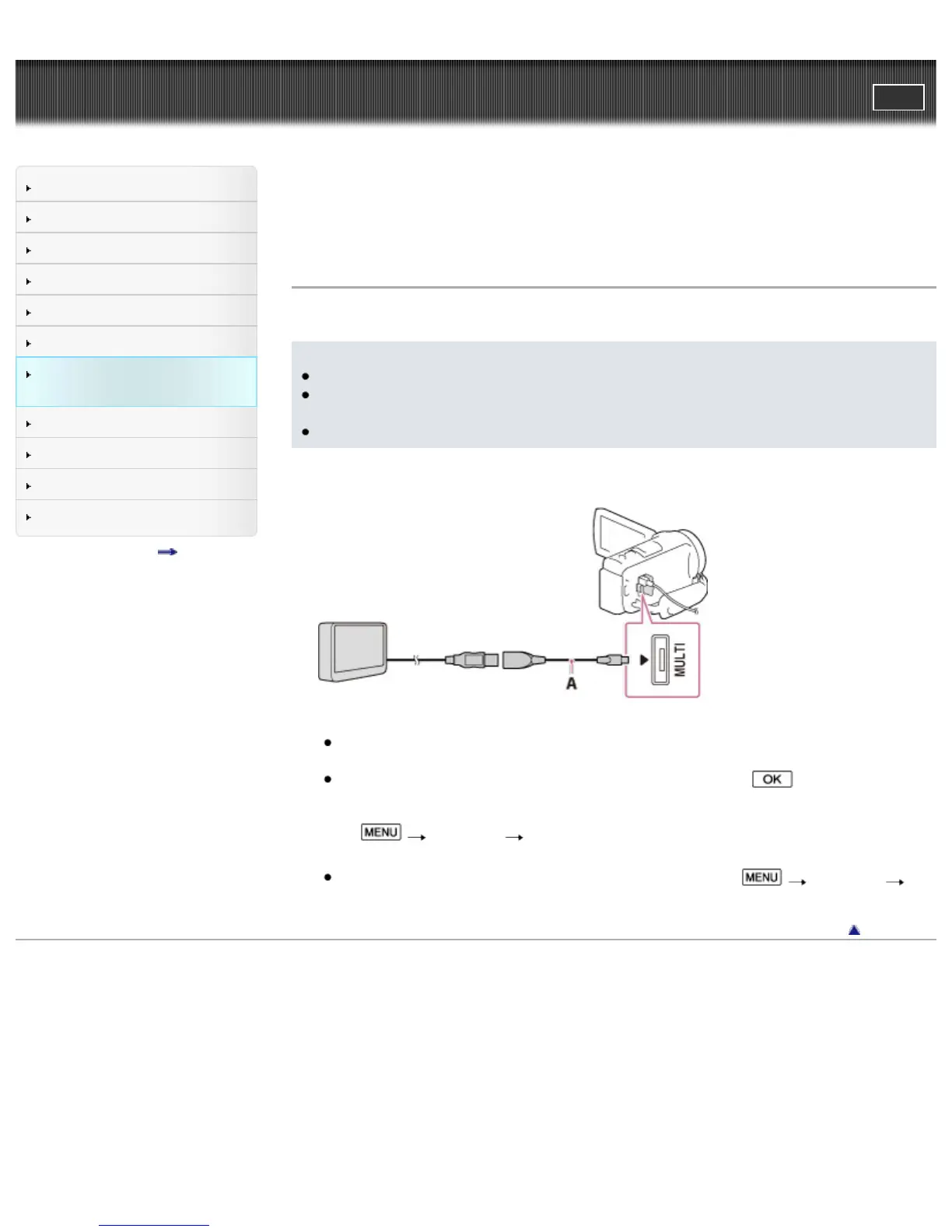
For this operation, you need the USB Adaptor Cable VMC-UAM2 (sold separately).
Connect the AC Adaptor and the power cord (mains lead) to the DC IN jack of your camcorder and
the wall outlet (wall socket).
Refer to the instruction manual supplied with the external media device.
1. Connect your camcorder and the external media device using the USB Adaptor Cable (sold
separately).
A: USB Adaptor Cable VMC-UAM2 (sold separately)
Make sure not to disconnect the USB cable while [Preparing image database file. Please wait.] is
displayed on the LCD screen.
If [Repair Img. DB F.] is displayed on the camcorder screen, select
.
2. Select [Play without copying.].
3. Select
[Edit/Copy] [Copy], and then follow the instructions that appear on the LCD
screen to save images.
If you want to copy images that have not yet been copied, select
[Edit/Copy]
[Direct Copy] while your camcorder is connected to the external media device.
Back to top
Copyright 2013 Sony Corporation



 To Next Page