Thumbnail Operations
116
Chapter 5 Operations in GUI Screens
To select a clip index picture while
viewing the video
See page 109 for more information about thumbnail
screen operations.
1 In the clip thumbnail screen, select the
thumbnail of the clip whose index
picture you want to change.
2 Display the Thumbnail Menu.
3 Select Select Index Picture.
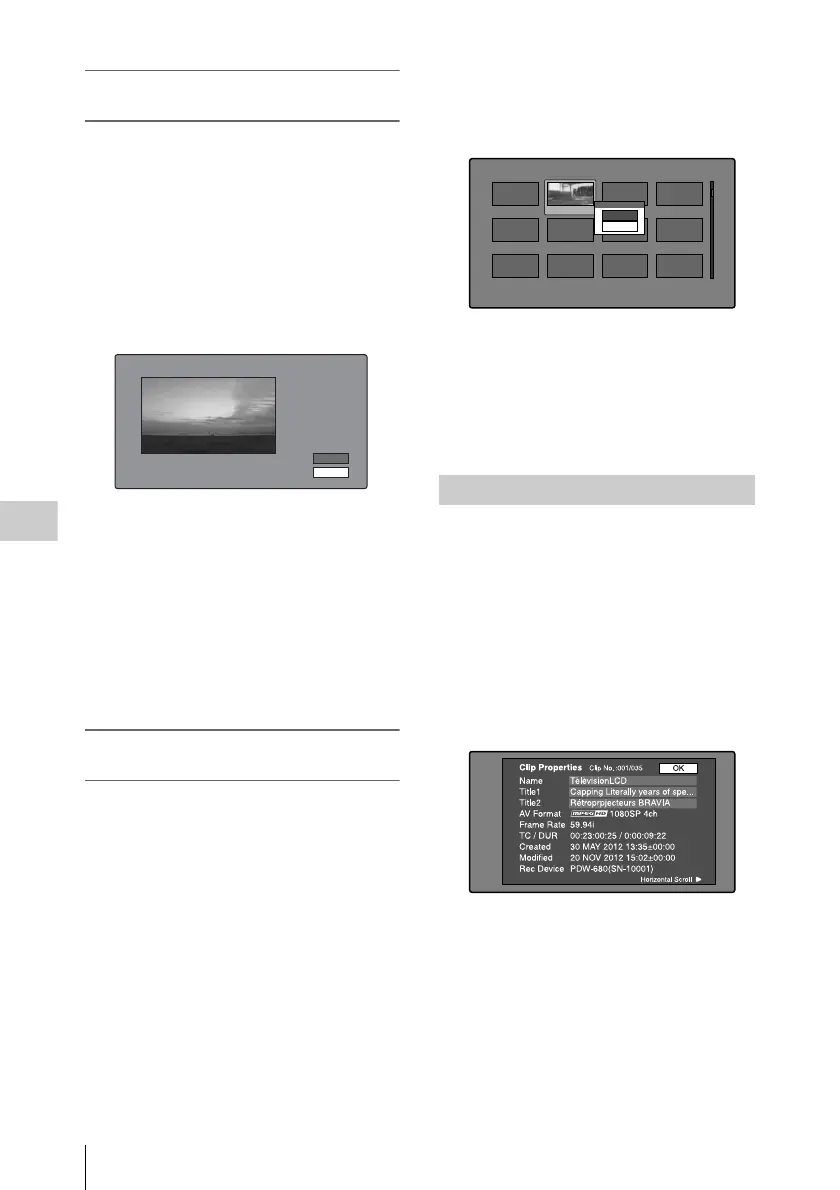
Select Index screen appears.
You can play and search with this screen.
4 Use the PLAY/PAUSE button or F
REV/F FWD buttons to display the
frame you want.
You can also perform a jog operation by
turning the MENU knob.
5 Press the up-arrow button to select OK,
and then press the SET/S.SEL button or
the MENU knob.
To select index pictures by using the
expand and chapter functions
After using the expand function (see page 111) or
chapter function (see page 112) to find a frame,
you can set that frame as the index picture of the
clip.
The following example explains how to do so
from the expand thumbnail screen.
See page 109 for more information about thumbnail
screen operations.
1 In the expand thumbnail screen, select
the thumbnail to set as the index
picture.
2 Display the Thumbnail Menu.
3 Select Set Index Picture.
A message appears asking you to confirm
that you want to set the current frame as the
index picture.
4 Select OK, and then press the SET/
S.SEL button or the MENU knob.
After pressing the RESET/RETURN button
to return to the clip thumbnail screen, check
to make sure that the newly selected frame is
displayed as the index picture.
You can check clip properties such as the title,
timecode, duration, date and time of creation, and
date and time of the more recent modification.
See page 109 for more information about thumbnail
screen operations.
1 Display the Thumbnail Menu in the clip
thumbnail screen.
2 Select Clip Properties.
The Clip Properties screen appears.
Clip No.: Clip number/total number of clips
Name: Clip name
1)
Title1: Title 1
Title2: Title 2
1)
AV F o r m a t : Recording format
Frame Rate: The frame rate when the clip
was shot.
TC/DUR: Timecode of the first frame/
Recording time
Created: Date and time of creation
Select Index:"Navigating sibling relati..."
018/036
TCR
01:09:16:13
OK
Cancel
Checking clip properties
Expand 001/012
TC 00:01:35:17
TC 00:01:37:11
TC 00:01:39:06
TC 00:01:37:24
TC 00:01:38:19
TC 00:01:36:14
TC 00:01:38:08
TC 00:01:40:02
TC 00:01:36:27
TC 00:01:38:22
TC 00:01:40:16
CLIP
Te ne DUR 0:00:00:13
TC 00:01:38:00
Set Index Picture
OK
Cancel



 To Next Page