Capturing Still Image While Recording Video
While recording video,
Image resolution varies by Video resolution setting.
Capturing with Camera Key
Use Camera Key when Capturing mode is set to "Manual," "4K video" or "Timeshift
video."
(Long Press) Tap icon to select Capturing mode When "Manual" is set, Tap
to show Viewfinder Press to start/stop capturing
Capturing with "Touch capture"
Use Camera Key when Capturing mode is set to "Manual," "4K video" or "Timeshift
video." Turn on "Touch capture" before capturing.
(Long Press) Tap indicator to select Capturing mode When "Manual" is set,
Tap to show Viewfinder Tap " " tab Tap or Drag right of
"Touch capture" Tap Viewfinder to start/stop capturing
Viewing Thumbnails
Tap thumbnail image at upper right on Viewfinder
Captured still image opens.
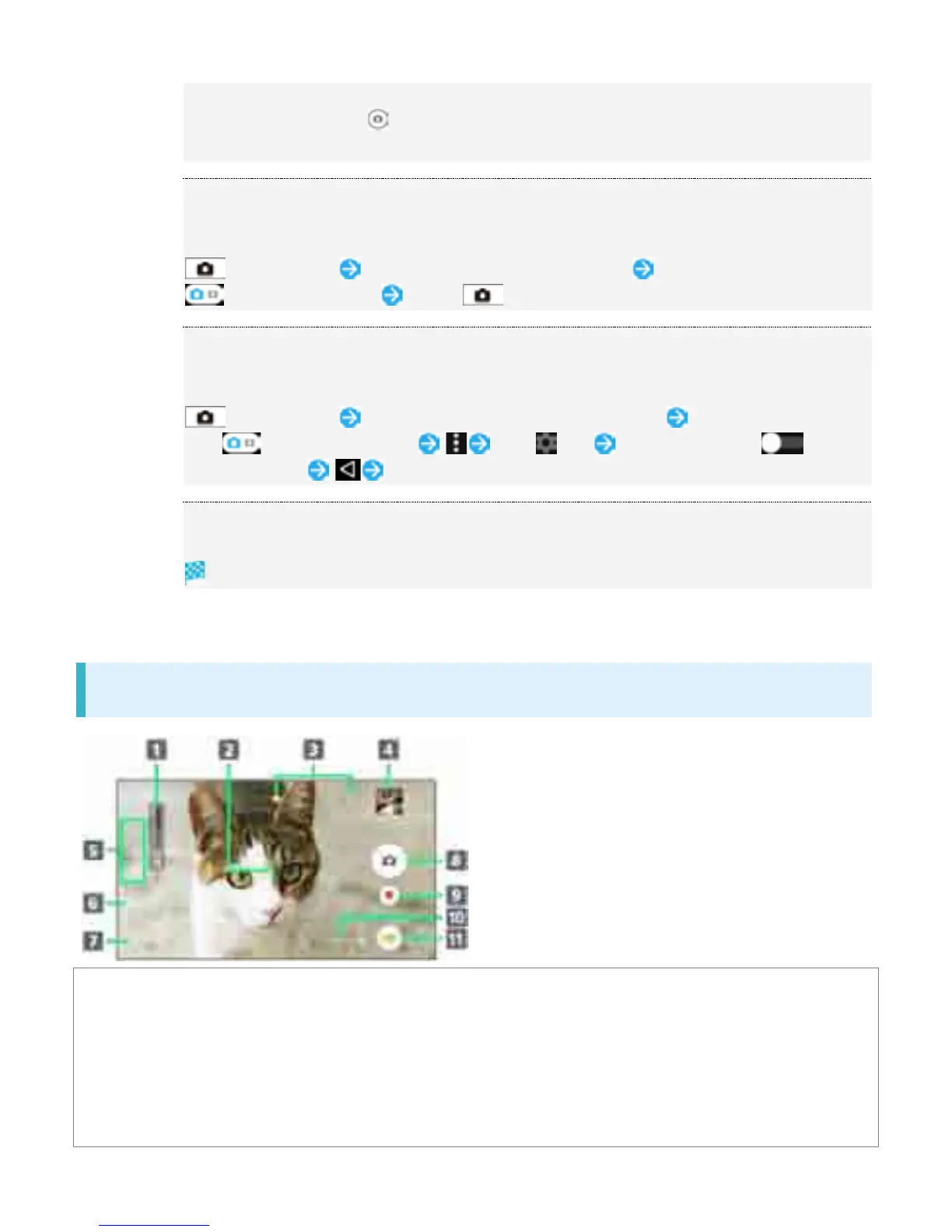
Photo/Video Viewfinder Layout



 To Next Page