21
WAYPOINTS
SPOT X allows you to designate important locations and landmarks as Waypoints on your device and
navigate to them.
CREATING A WAYPOINT
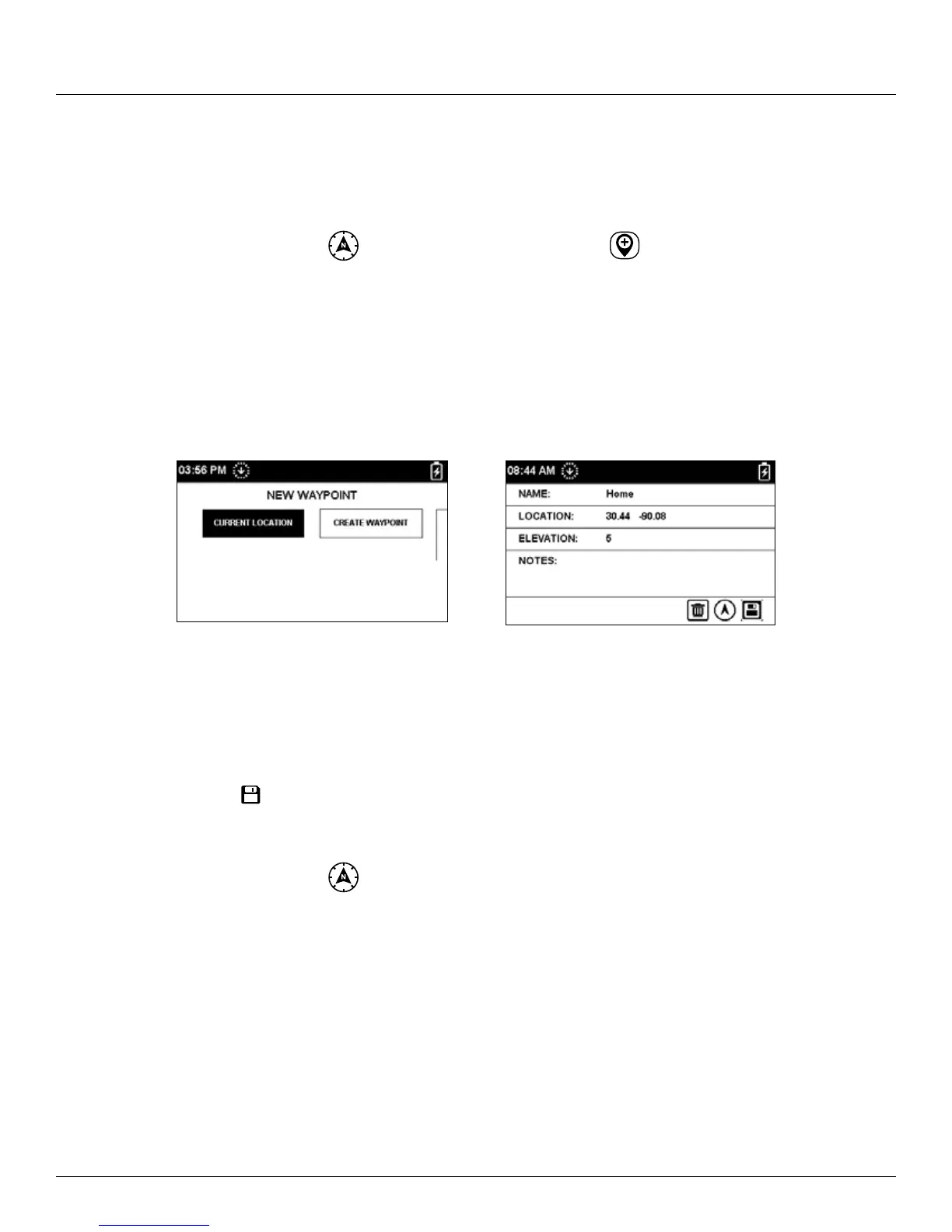
1. On the Main Menu screen, select then select Waypoint followed by to create a new waypoint.
2. Select either:
• Current Location – creates a new waypoint based on the current GPS coordinates of the SPOT X
• Create Waypoint – creates a new waypoint by manually entering GPS coordinates
• The Waypoint screen will be displayed. If Current Location was selected, the Location field will input the
current GPS coordinates automatically. If Create Waypoint was selected, the GPS coordinates will have to be
input manually.
3. To change the name of a waypoint, enter your selected waypoint name in the Waypoint Name field.
4. Selecting the Notes field will display the Waypoint Notes screen allowing you to enter up to 300 characters.
Select DONE to save the notes.
5. When finished, select
to save the waypoint.
NAVIGATING TO A WAYPOINT
1. On the Main Menu screen, select then select Waypoint and chose the specific waypoint you’d like to travel
towards.
NOTE: For best results, while navigating, hold the SPOT X with the antenna at about a 135 degree angle.
2. The selected Waypoint screen will be displayed. Select the Navigate To button.
3. The Compass screen will appear displaying the Compass and the following Data Fields:
• Destination – with the selected Waypoint coordinates
• Distance to Destination – in a straight line
• Lat/Lon – current GPS location
• Course – direction towards selected Waypoint


 To Next Page