38
MESSAGE BLOCKER TAB
By updating these settings, you can easily control who you receive messages from.
SELECTING A BLOCKING MODE
1. Select the appropriate blocking mode:
• Blacklist Mode – Blocks only incoming messages listed in the blacklist
• Whitelist Mode – Blocks all incoming messages that are not on your whitelist or listed as a contact in My
Account
• Synced Contacts Only – Block all numbers and emails that have not been synced to your SPOT X device.
• Block All - Blocks all incoming messages
• Accept All – Accept all incoming messages
2. Click Save.
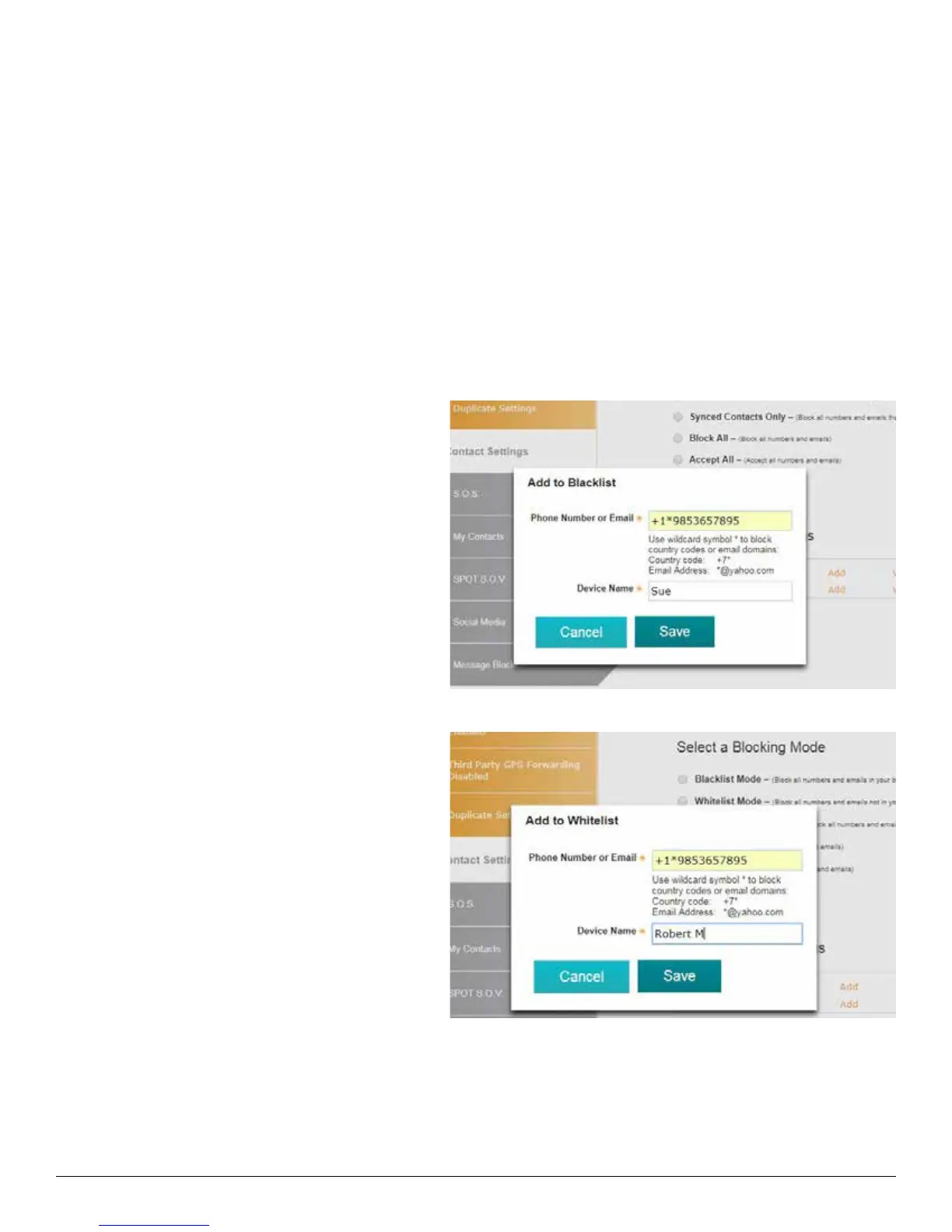
ADD TO THE BLACKLIST
1. In the Blocking Mode section, select Add and
the Add to Blacklist popup will be displayed.
2. Enter the Mobile # or Email address you wish
to block, along with an associated name, and
click Save.
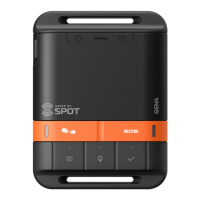
ADD TO THE WHITELIST
1. In the Blocking Mode section, select Add and
the Add to Whitelist popup will be displayed.
2. Enter the Mobile # or Email address you wish
to add, along with an associated name and
click Save.


 To Next Page