9
KeyAdvantage User Manual
Read KeyBox & View Last KeyBox Read
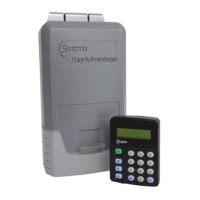
When the KeyPad reads a KeyBox, the 5 most recent accesses can be viewed on the KeyPad. The KeyPad
displays the key holder name and KeyPad serial number. Press the Enter button to view the date and time of
the access selected. To view the next access record, press the Down Arrow ( ) button to scroll through the
additional entries.
• A complete KeyBox read (which consists of the most recent 35 entries) can be downloaded to the
KeyAdvantage software by checking in the KeyPad that performed the KeyBox read. The information can
then be viewed as an Access report.
• The KeyPad can store one KeyBox read at a time. Use the View Last KeyBox Read menu option to view
KeyBox access details from the KeyBox read.
See “Reading KeyBoxes” on page 54 for details on reading KeyBoxes.
KeyPad Information
When a KeyPad is powered on, it displays the name of the user to whom it is currently assigned. If the KeyPad is
unassigned it shows that it is unassigned and invalid.
• The KeyPad assumes the identity of the user when the user checks out a KeyPad. This information is
programmed into the KeyPad when it connects to the KeyAdvantage software through the programming
base.
• The KeyPad functions according to the key holder’s permissions when the user checks out a KeyPad.
The User Information menu option also shows the name of the assigned user. While the user name is displayed
in this menu, pressing the Down Arrow ( ) button will show the date and time that the KeyPad is valid. The time
displayed on the KeyPad will always be Standard Time. If Daylight Savings Time is in effect, only the time shown
on reports will reect Daylight Savings Time; a “D” will be displayed next to the time on the KeyPad.
To display the user information:
1. Press the Start ( ) button to turn on the KeyPad.
2. Press the KeyPad Information ( ) button repeatedly until the User Information menu is displayed.
3. Press the Enter button.
4. Press the Down Arrow ( ) button to view the date and time of the KeyPad’s validity. This time is always
shown in Standard Time.
Manual Updates
Should you ever have problems getting your programming base to communicate with the KeyAdvantage software
and are unable to check out KeyPads, the KeyPads can be manually updated by entering an update code.
• Only the KeyAdvantage System Administrator can contact Supra customer support to receive update
codes and the System Administrator will be required to answer a security question before receiving
update codes.
• KeyPads that are updated by means of an update code instead of through the programming base are
not assigned to a specic user, and therefore do not assume their permissions. There are no department
restrictions. Manually updated KeyPads can open all of the dealership’s KeyBoxes, regardless of the
user’s prole in the KeyAdvantage system.
• Manually updated KeyPads are activated until midnight of that night. If you have users whose shift lasts
past midnight, Supra Support can generate a special update code for the KeyPad that allows the KeyPad
to be active until midnight of the next day.


 To Next Page