35
KeyAdvantage User Manual
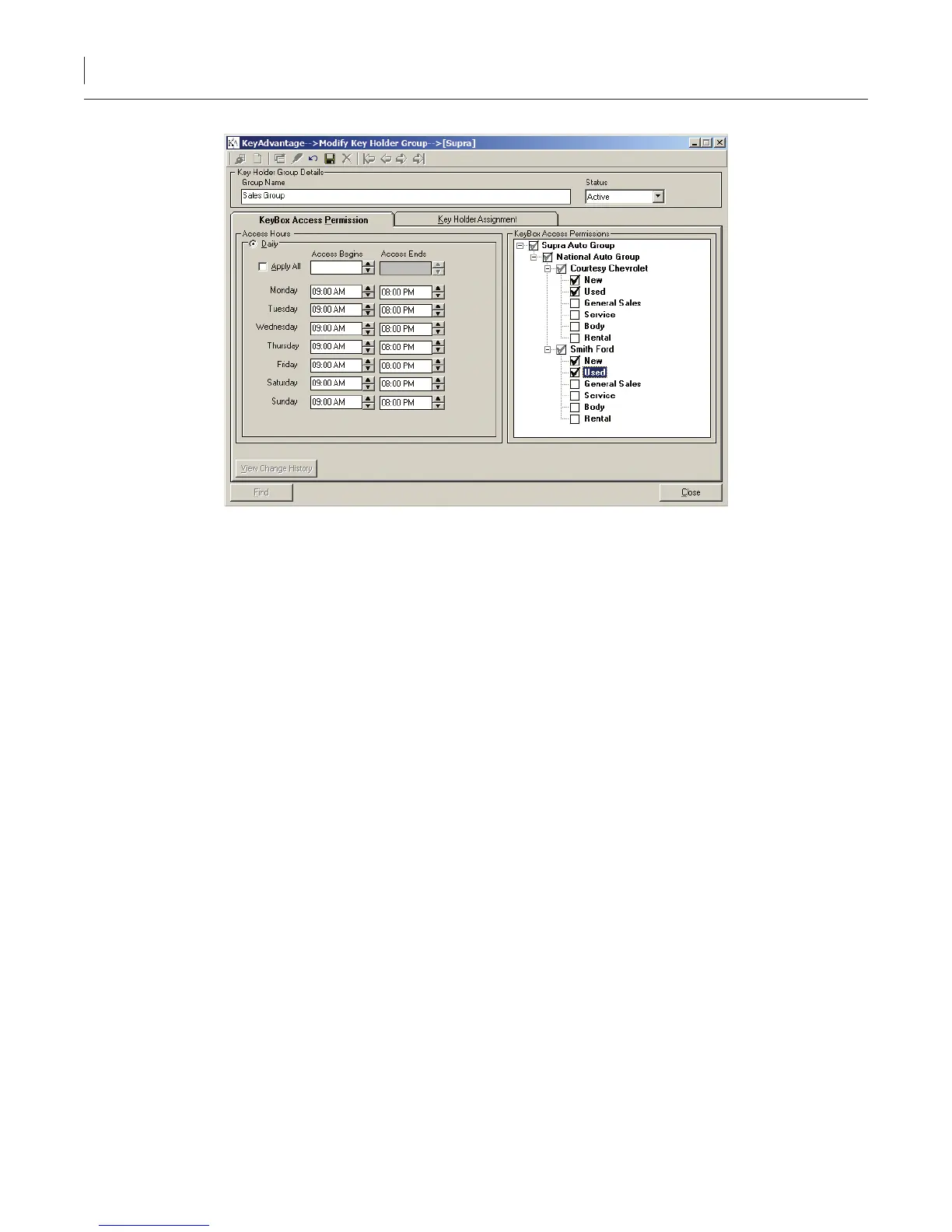
Figure 7. KeyBox Access Permission tab
2. Click Add new.
3. Enter a name for the group.
4. Select the status from the dropdown list.
Active—The key holders can check out KeyPads.
Inactive—The key holders cannot check out KeyPads. Making a key holder group status inactive
prevents all key holders within the group from checking out a KeyPad.
5. Enter the hours the key holders are allowed to access vehicles. If the hours are the same each day of the
week, enter the hours in the rst line and check the Apply all box.
6. Check the dealerships and departments the key holder group should be able to access.
7. Click Save.
Creating Users and Key Holders
To create a new user or key holder, do the following:
1. Click Users > Modify Users.
2. Click Add new.
3. Select the user status from the dropdown list.
Active—The user can check out KeyPads and/or log on to the KeyAdvantage software.
Inactive—The user cannot check out KeyPads or log on to the KeyAdvantage software.
If a user no longer works for the dealership, change the status to Inactive.
4. Enter the user’s rst and last names.


 To Next Page