48Chapter 3
Using KeyPads and KeyBoxes
4. Click Find.
5. If necessary, scroll through the records using the arrow buttons at the top of the screen to locate a
specic KeyPad.
6. Click the Modify Current Record button.
7. You can change the status and notes when modifying a KeyPad. Select the status from the dropdown list
and enter any applicable notes in the Notes elds.
There are three KeyPad statuses:
Active—The KeyPad can be checked out.
Inactive—The KeyPad can be checked in but cannot be checked out.
Lost—The KeyPad can be checked in but cannot be checked out.
8. Click Save.
Diagnosing KeyPads
The Diagnose KeyPads menu option displays the settings programmed into the KeyPad and provides information
that is helpful in diagnosing the KeyPad. To diagnose KeyPads, do the following:
1. Click KeyPad > Diagnose KeyPads.
2. Place the KeyPad upside down on the programming base.
3. Once the yellow IR light on the programming base is lit, press the green Start ( ) button on the
KeyPad.
4. The diagnostic information displays the following:
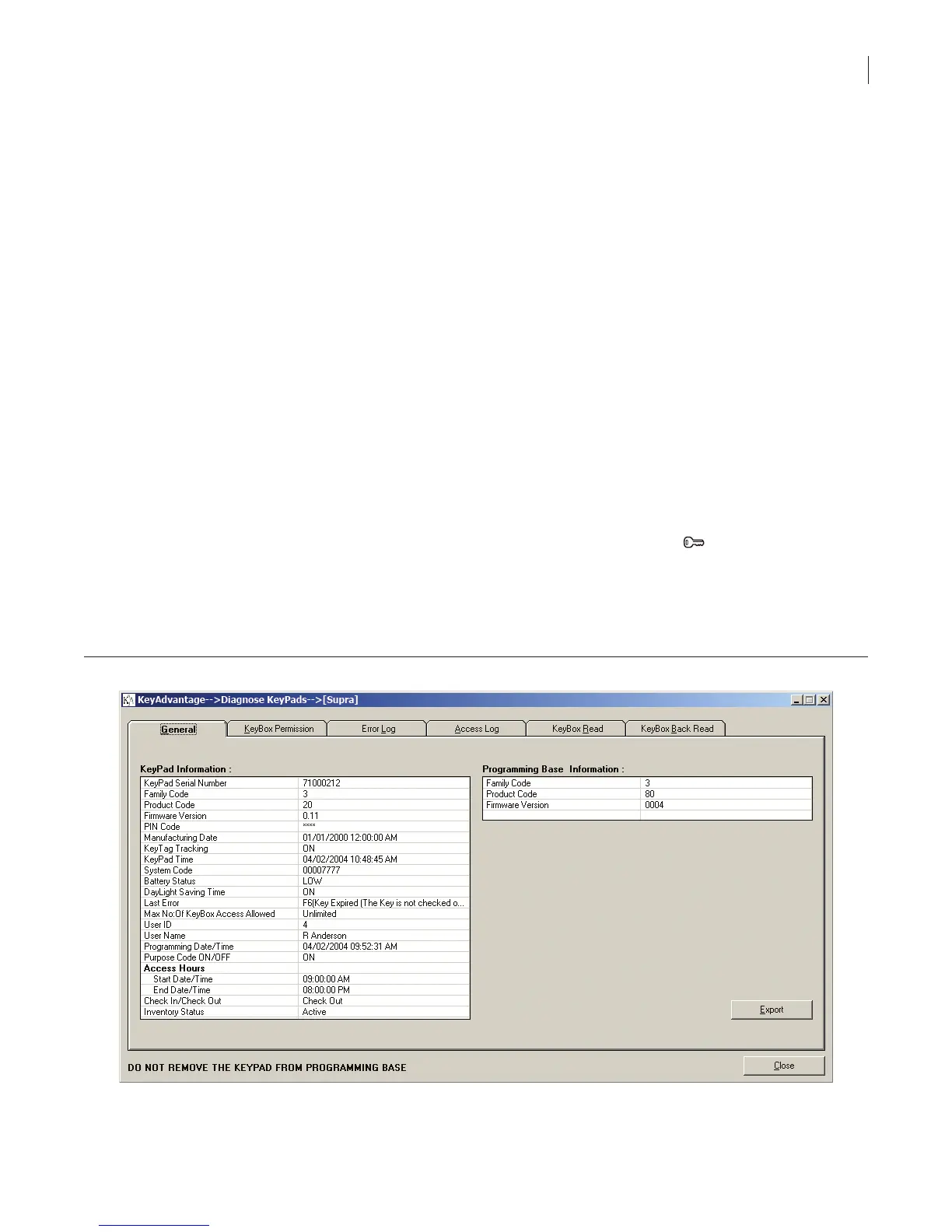
• The General tab (Figure 23) displays information on the KeyPad and the key holder if the KeyPad is
currently assigned or checked out.
Figure 23. General tab



 To Next Page