34
Chapter 2
Getting Started
Importing KeyAdvantage Inventory
Use the Import inventory function to import a dealership conguration le or KeyAdvantage inventory information.
When Supra sends an order of new KeyBoxes or KeyPads, it includes an inventory le that contains information
needed by the KeyAdvantage software. You must import the inventory le into the KeyAdvantage software before
using the KeyBoxes or KeyPads.
To import an inventory le, do the following:
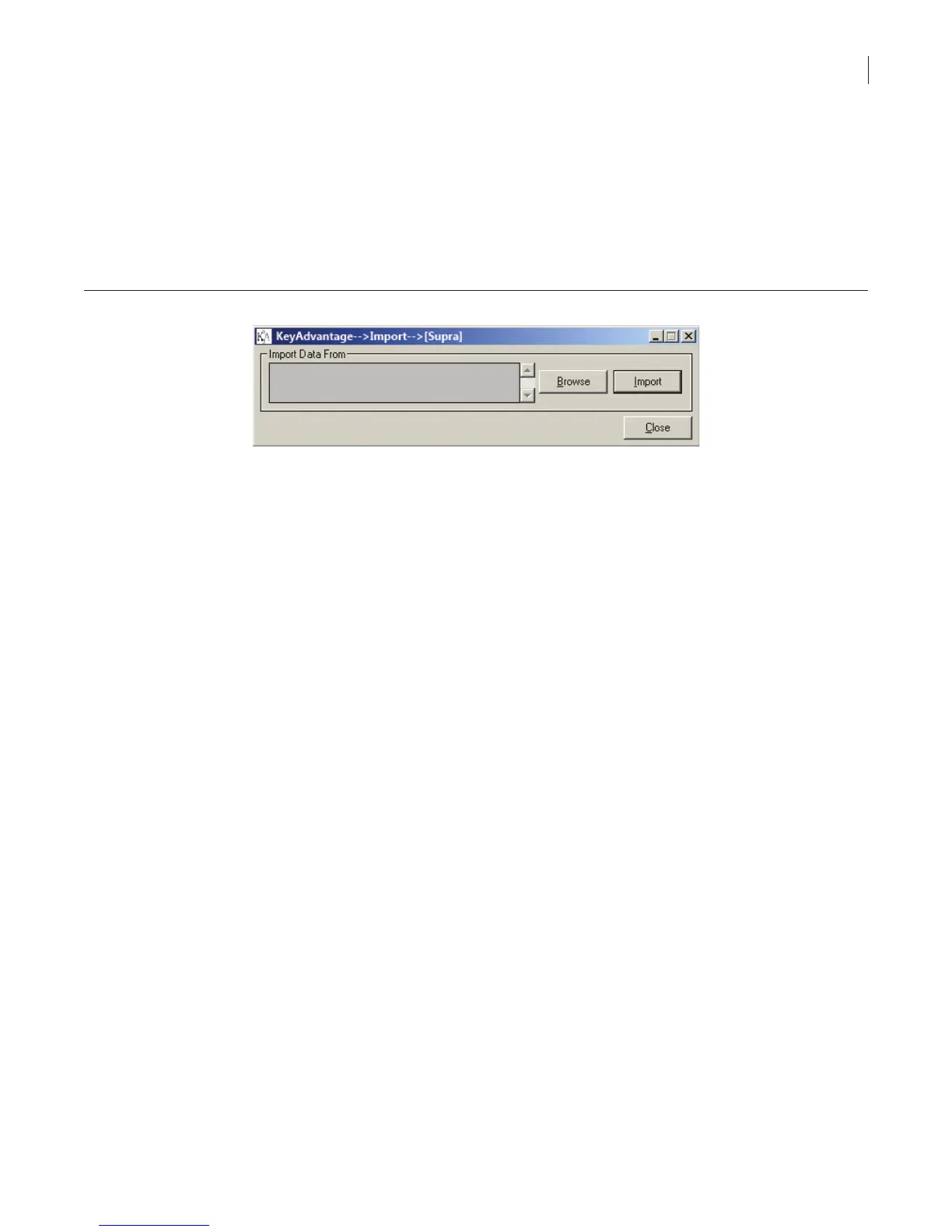
1. Click File > Import. The Import window displays (Figure 6).
Figure 6. Import window
Note: If a dialog box opens prompting you to enter a CD key, enter the CD key validation number printed
on the back of the KeyAdvantage software installation CD package.
2. Click Browse.
3. Locate the .supra inventory le. Highlight the le and click Open.
4. Click Import.
5. Click Yes to view the log le.
6. If you have another inventory le to import, repeat the process.
7. Click Close.
Creating Key Holder Groups
Key holder groups categorize key holders who access the same KeyBoxes during the same working shift. You
can assign key holders that have the same working hours and access to the same KeyBoxes to a key holder
group for easier key holder data entry. Examples of key holder groups include New vehicle sales, Used vehicle
sales, and Service department. The access hours and KeyBox access permissions of a group are applied to all
key holders within a group.
To create a key holder group, do the following:
1. Click Users > Modify key holder group. The Modify Key Holder Group window displays (Figure 7).



 To Next Page