58Chapter 4
Reports
Chapter 4. Reports
This chapter provides information on generating reports, and scheduling reports for automatic
distribution.
To generate a report, do the following:
1. Click the Reports menu.
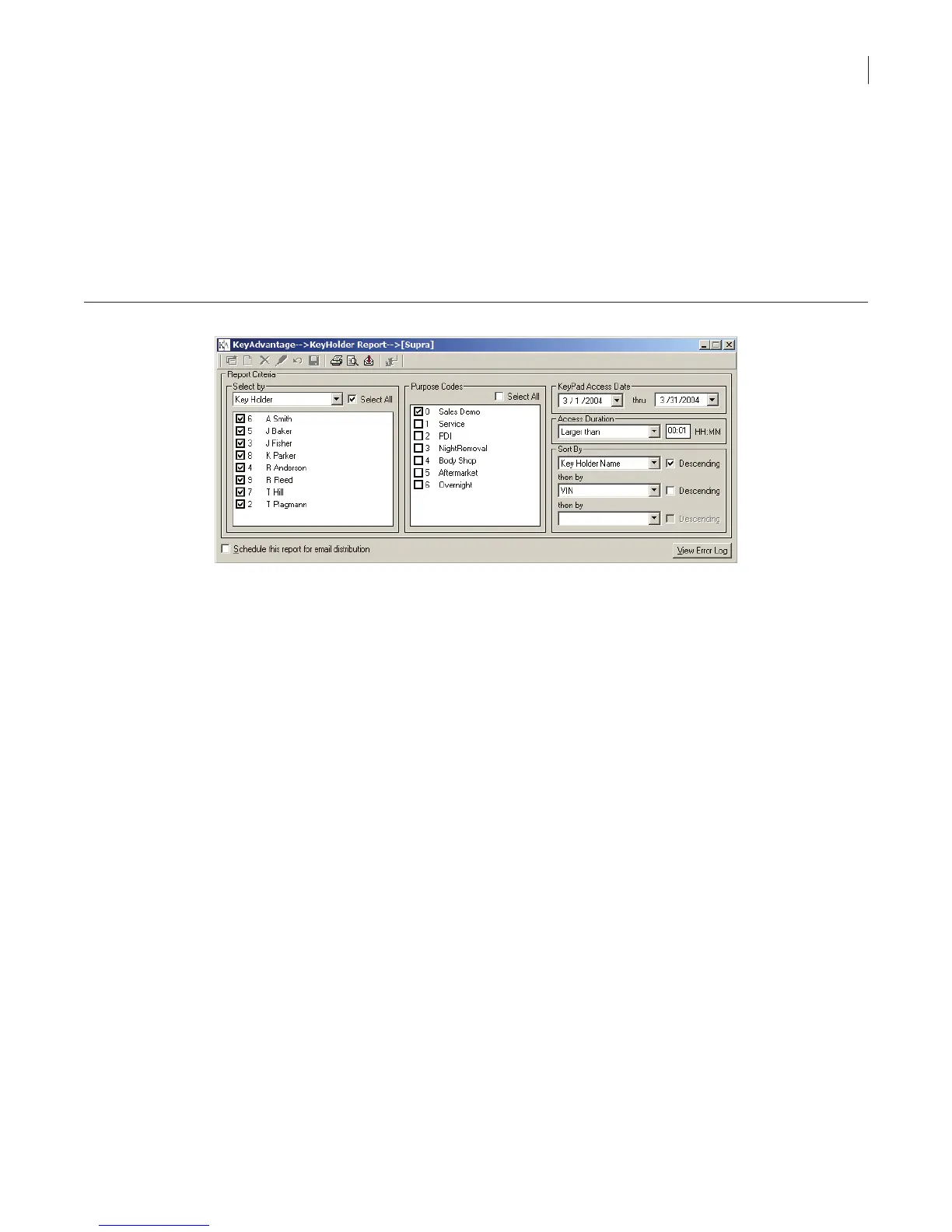
2. Select the type of report to generate. The Key Holder Report window displays, as shown in Figure 37.
Figure 37. Sample key holder report screen
• Access reports summarize key holder, vehicle, demo activity, vehicle aging, or purpose summary
information.
• KeyPad assignment reports display in-use or expired KeyPads or KeyPad assignment history.
• Reconciliation reports generate vehicle key removal or KeyTag reconciliation data.
• Inventory reports summarize KeyPad, KeyBox, and vehicle inventory information.
• Conguration reports display system user conguration and key holder conguration data.
• History reports show all record changes made within a specic time period.
3. Set the report options.
4. Select the report destination by clicking the Print, Print Preview, or Export button, or schedule the report
for e-mail distribution by checking the Schedule This Report For E-mail Distribution box.
Scheduling Reports for Automatic Distribution
To schedule reports to be automatically generated and delivered to an e-mail address, do the following:
1. Select the Reports menu.
2. Select the report to schedule.
3. Check the Schedule This Report For E-mail Distribution box.
4. Click the New Schedule button. The Vehicle Report window displays, as shown in Figure 38.


 To Next Page