37
KeyAdvantage User Manual
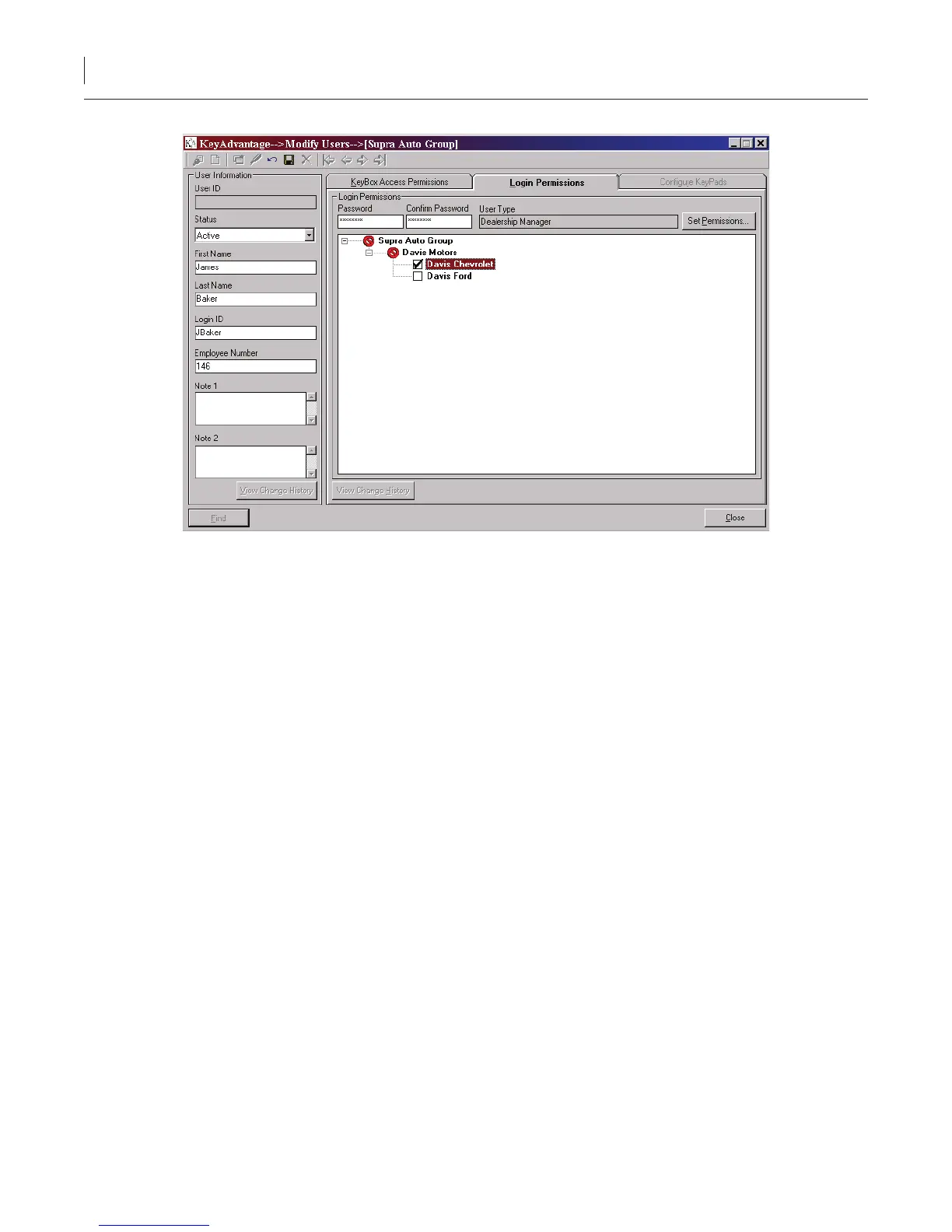
Figure 9. Login permissions tab
14. Click Set Permissions and select the user type from the dropdown list.
Note: You cannot create a user with login permissions that exceed your own.
15. Check/uncheck any KeyAdvantage functions and click OK. If you add or remove any functions, the
program will save the user as Custom in the User type eld.
16. Enter and conrm a password for the user. The user logs on to the KeyAdvantage software using the
login ID and password. The password must contain a minimum of eight characters and at least one
numeral, one uppercase character, and one lowercase character.
17. Check the dealerships and departments the user should be able to access.
18. If you’ve congured your system to assign KeyPads to specic key holders, click the Congure KeyPads
tab. The Congure KeyPads tab becomes active, as shown in Figure 10.


 To Next Page