Operating the MC1000 2-7
Adjusting the Screen Contrast
To adjust the screen contrast:
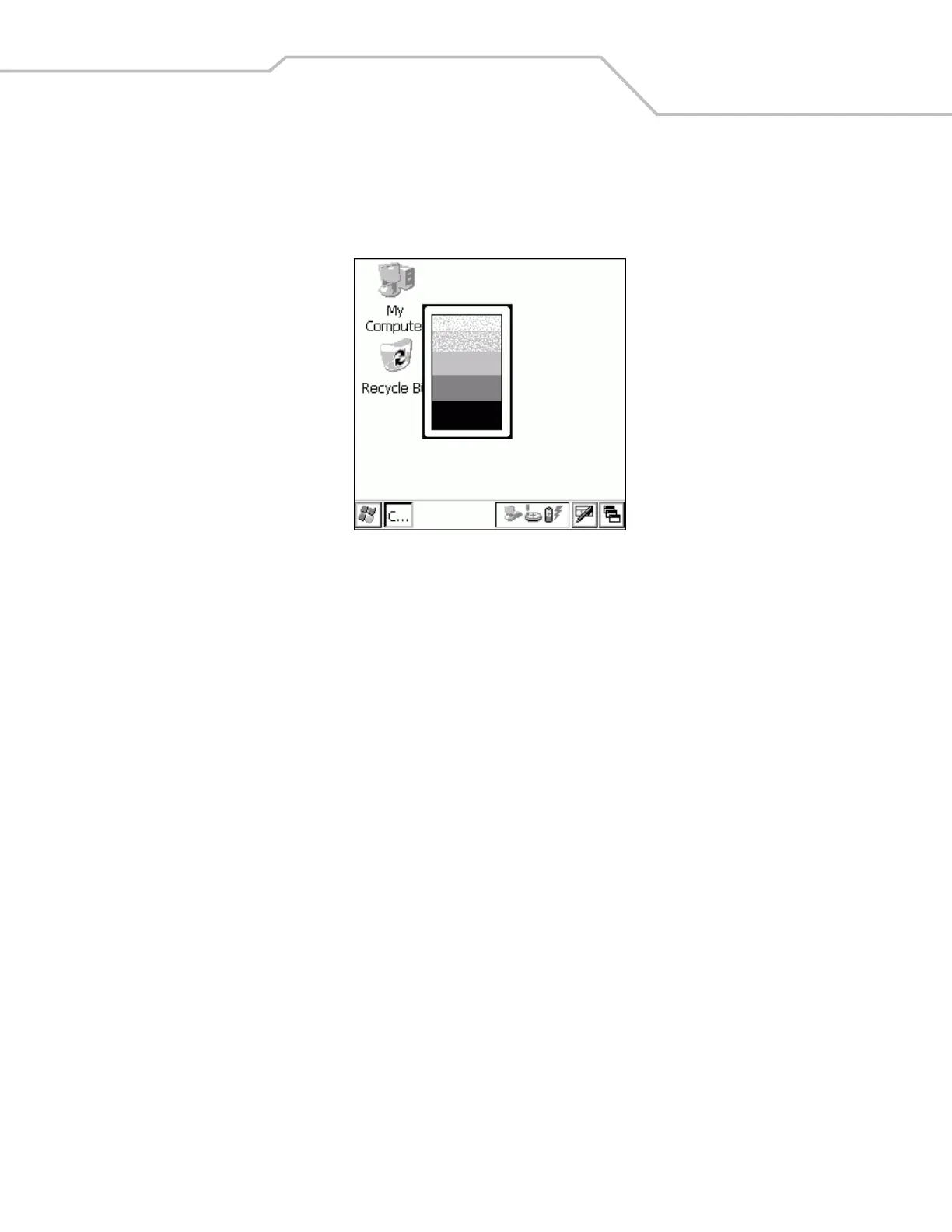
1. Press F - SHIFT. The contrast control box appears.
Figure 2-3. Contrast Control Box
2. Use the scroll up or scroll down keys to adjust the contrast.
3. After three seconds of inactivity, the settings are saved and the box disappears.
Screen
The mobile computer’s screen is a non-touch screen. All navigation of applications is performed using the keypad. See Using the
Keypad to Navigate Applications on page 2-5 for more information.
Taskbar
The taskbar (at the bottom of the screen) displays the Start button, active programs, and status icons. Table 2-3describes the status
icons.
• Start button
Opens the Start menu for accessing the Control Panel and programs.
• Active Programs
The active applications’ icons appear in the taskbar. If more than one program is active, use the Task Manager to toggle
between the active programs.


 To Next Page