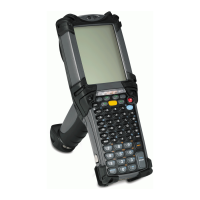
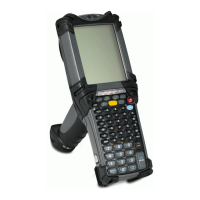
Operating the MC1000 2-5
Using the Keypad to Navigate Applications
The mobile computer screen is a non-touch screen and therefore navigation and control of an application is performed using the
keypad.
Key Combinations
The mobile computer uses special key combinations to easily navigate applications. Table 2-2 lists the key combinations required to
perform various application navigation and control.
Selecting Items
Use a combination of key sequences to select items in a folder or list.
To select continuous items in a folder or list:
1. Open the folder or list.
2. Use the scroll keys to move to the first item to select.
3. Press A to activate the alpha mode.
4. Press SHIFT - scroll key (either up or down) to select the next item.
5. Repeat the SHIFT - scroll key combination to select remaining items.
6. Perform the desired function.
To select multiple items in a folder or list:
1. Open the folder or list.
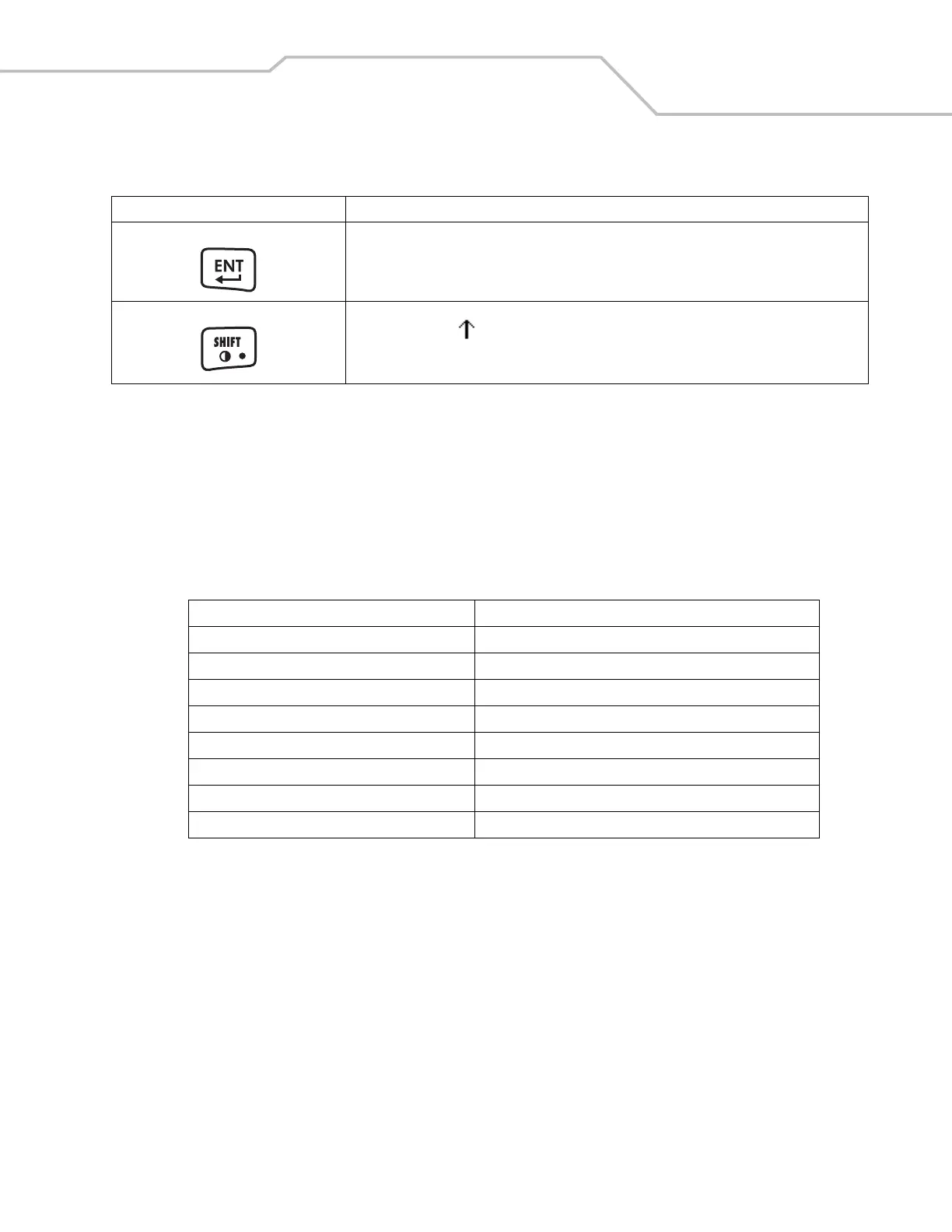
ENT Executes a selected item or function.
SHIFT Press the orange A key and then press and release the SHIFT key to activate the keypad alternate
SHIFT function. The icon appears on the taskbar. See Table 2-3 on page 2-8 for more information.
Adjusts the screen contrast when used with the blue F key. See Adjusting the Screen Contrast on page
2-7 for more information.
Table 2-2. Key Combinations
Action Key Combination
Access the Start menu on the Task Bar Press F - CTRL - F - ESC
Switch fields within an application Press F - TAB
Close windows or cancel operations Press F - ESC
Access the Task Manager Press F - ALT - F - TAB
Minimize current window Press F - ALT - F - ESC
Access a menu bar Press F - ALT - F - ALT
Press a button in an application window. Press F - TAB until the button is highlighted. Press A - SPACE
Toggle IME mode on/off (Simplified Chinese only) Press F - CTRL - SPACE
Table 2-1. Keypad Descriptions (Continued)
Key Description


 To Next Page