MC3000 Integrator Guide9-4
Table 9-1. Rapid Deployment Window
Text Box/Button Description
Please scan all of the bar codes... This text box displays the status of a scanned bar code.
- Waiting indicates the device is ready to scan a bar code.
- OK indicates the device successfully scanned a bar code. (The Indicator LED bar
on the mobile computer turns green and a beep sounds).
If there are no bar codes left to scan, the Rapid Deployment Configuring window
displays, see Figure 9-3.
Bar codes left to scan... This text box displays a list of any remaining bar codes to scan (1-D bar codes
only). When all required bar codes are scanned successfully, the Rapid
Deployment Configuring window displays, see Figure 9-3.
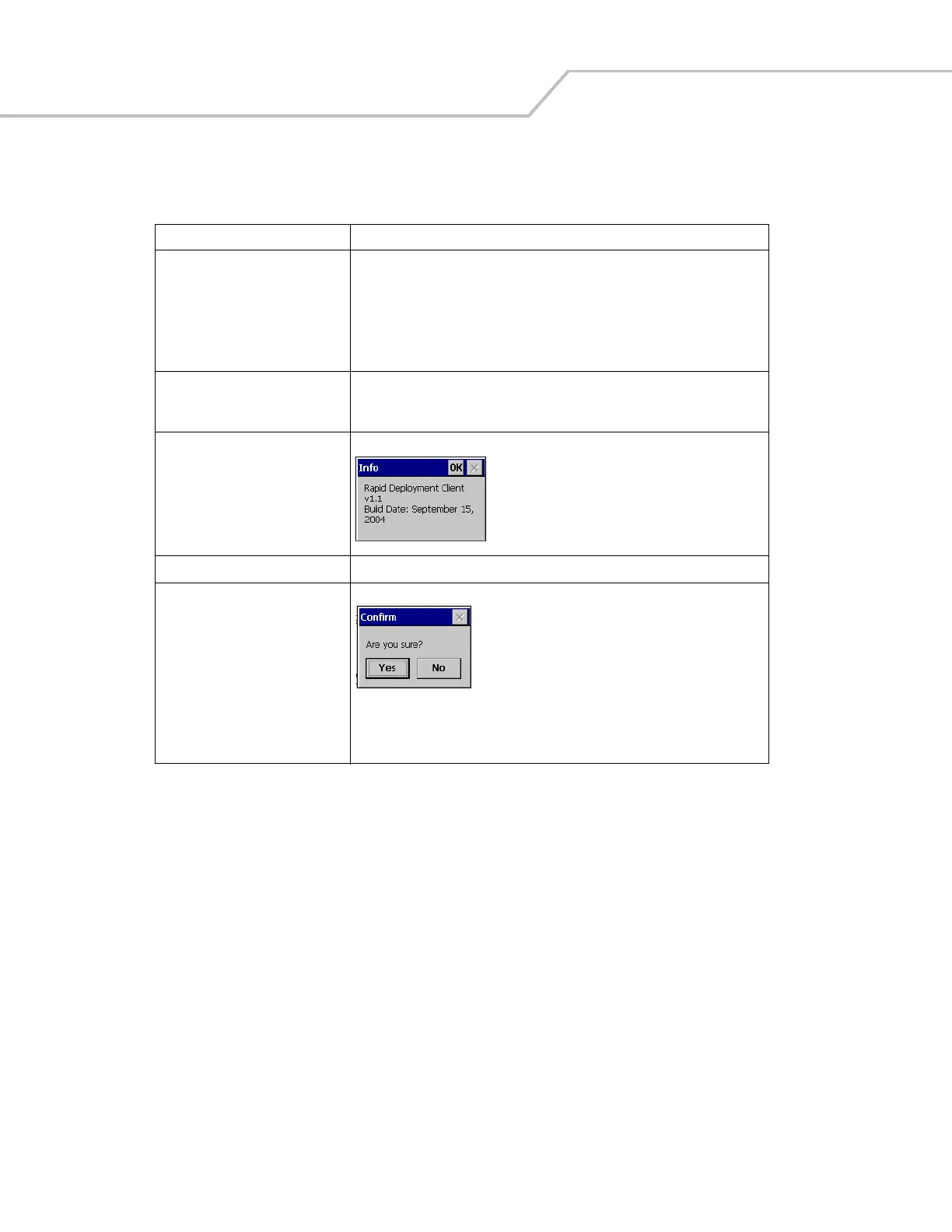
About Tap About to display the Rapid Deployment Client Info window.
Reset Tap Reset to remove any previously scanned data.
Exit Tap Exit to close the application. A confirmation window displays:
Tap Yes to exit or No to return to the Rapid Deployment window.
Note: If the application is exited prior to scanning all required bar codes, any
scanned data collected up to that point is lost.


 To Next Page