MC3000 Integrator Guide7-10
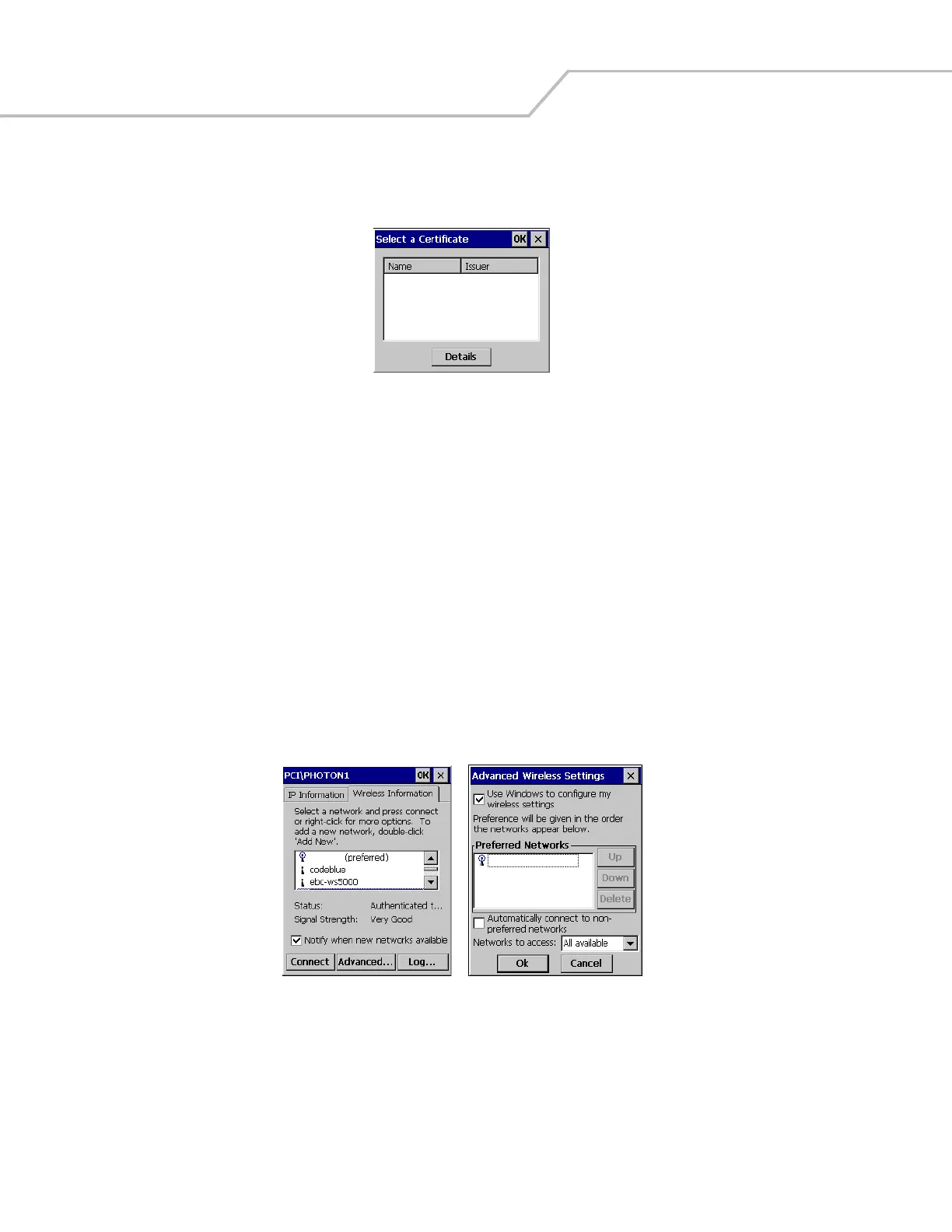
14. Tap the Select button on the Authentication Settings window, to view the Select a Certificate window.
Figure 7-12. Select a Certificate
15. The Select a Certificate window displays the available certificates. To view a certificate, tap to highlight the certificate and
tap the Details button.
16. Tap X to return to the Select a Certificate window and tap X to return to the Authentication Settings window.
17. Repeat step 14 to view another certificate.
18. Tap OK to exit the Authentication Settings window and return to the Wireless Properties window.
19. Tap OK to exit the Wireless Properties window and return to the Wireless Information tab window.
20. The icon changes to indicate a connection to an available network. Once the network connection is made the configuration
information is automatically saved in the preferred networks and (preferred) is added to the network name.
Advanced Wireless Settings
Advanced Wireless Settings are used to display and edit the preferred network settings.
1. From the Wireless Information tab window, tap a preferred WLAN to select it. Tap Advanced to display the preferred
networks.
Figure 7-13. Advanced Wireless Settings
2. Tap the Up or Down buttons to scroll up or down on the list of preferred networks.
3. To delete a Preferred Network, tap the network to highlight it and then tap Delete.
4. The Advanced Wireless Settings window allows the user to enable Windows to automatically configure the wireless
settings. Tap the Use Windows to configure my wireless settings check box to enable this feature and uncheck the checkbox
to disable this feature.
WLAN123
WLAN123



 To Next Page