MC3000 Integrator Guide1-10
Starting the Mobile Computer
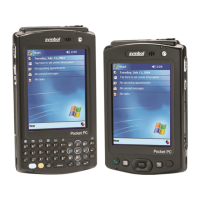
When the mobile computer is powered on for the first time, it initializes. The Symbol Splash screen appears for a short period of time,
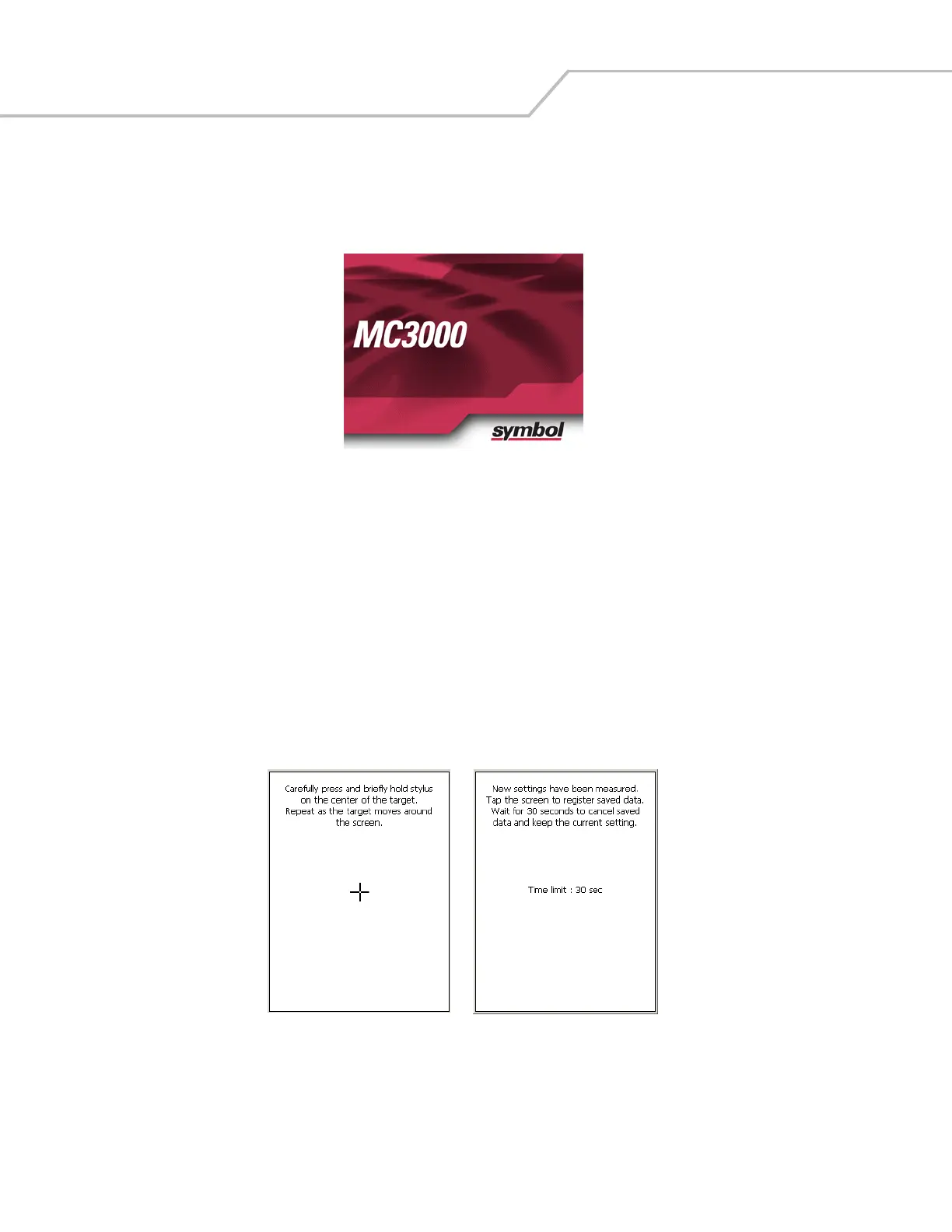
followed by the Calibration screen.
Figure 1-5. Symbol Splash Screen
After the calibration procedure is performed the factory default settings launch the Series 3000 Demo window. Application specific
shells may provide application specific windows instead of the Series 3000 Demo window. These screens also appear when a cold
boot is performed.
If the mobile computer does not power on, see Resetting the Mobile Computer on page 1-12.
Calibration Screen
Use the Calibration screen to align the touch screen:
1. Remove the stylus from the stylus holder.
2. Carefully press and briefly hold the tip of stylus on the center of the Calibration screen target. Repeat the procedure as the
target moves and stops at different locations on the screen. This enters the new calibration settings.
Figure 1-6. Calibration Screen
3. Once all of the new calibration settings are input, the Confirm Calibration Resave screen appears. Tap the screen within 30
seconds to save the new calibration settings or allow the 30 second timer to expire and the new calibration settings are not
saved.
Calibration Screen Confirm Calibration Resave
Screen


 To Next Page