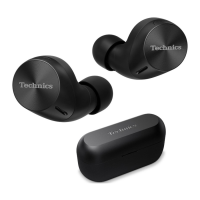
R Ambient Sound: The microphones capture sound from the surroundings and play it on the
earphones. You can hear sounds from your surroundings such as train announcements while
wearing the earphones.
Activate voice assistant features
You can activate voice assistant features (such as Amazon Alexa or Siri) with a touch sensor on
the earphone.
1 Connect the Bluetooth
®
device and earphones.
“When using Amazon Alexa as a voice assistant (EAH-AZ80/EAH-AZ60M2/EAH-AZ40M2)”,
Page 40
2 Touch and hold touch sensor (L) for about 2 seconds.
R The voice assistant feature in the Bluetooth
®
device is activated.
Note:
R Voice assistant features may not activate depending on the smartphone specifications and the
app version.
R For details about voice commands for the voice assistant feature, please refer to the manual
of the Bluetooth
®
device that uses the voice assistant feature.
When using Amazon Alexa as a voice assistant (EAH-AZ80/EAH-AZ60M2/
EAH-AZ40M2)
Use the [Technics Audio Connect] app to complete setup.
Important:
R Install the latest version of the Amazon Alexa app.
1 Connect the Bluetooth
®
device and earphones.
2 In the home screen of the [Technics Audio Connect] app, tap [SETTINGS].
3 Tap [Select voice assistant] and select Amazon Alexa.
4 Follow the on-screen instructions.
R After signing into Amazon, you will need to add the headphones in the Amazon device
setup.
Note:
R Amazon Alexa is not available in all languages and countries. Amazon Alexa features may
also vary by location. For details, please refer to the manuals of the apps.
Establish multi-point connections
Multi-point allows the earphones to connect up to 3 Bluetooth
®
devices at the same time.
Note:
R Multi-point connections are established only with the last device connected via Bluetooth
®
(up
to 3).
R When connecting 3 devices with multi-point, set the number of multi-point devices to 3.
40
Convenient Function



 To Next Page