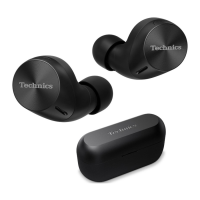
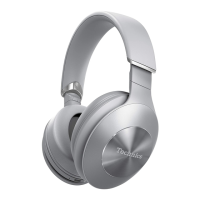
3 Tap [Restore headphones to the factory settings].
4 Tap [Reset].
5 Follow the on-screen instructions.
Firmware updates
If an update notification is displayed on your smartphone, follow the on-screen instructions to
update to the latest version.
Important:
R While the firmware is updating, place the headphones and your smartphone close together
and wait without using them. The update may be interrupted or delayed if there is music
playing or a call during the update.
1 In the home screen of the [Technics Audio Connect] app, tap [SETTINGS].
2 Tap [Update headphones].
3 Follow the on-screen instructions.
R Wait until the update is complete and do not operate the headphones or the app.
4 In the home screen, tap [SETTINGS].
5 Tap [Headphone information] and confirm that “Firmware is up to date.” is displayed.
Help
You can check user guides and headphone information.
1 In the home screen of the [Technics Audio Connect] app, tap [SETTINGS].
2 Select and check an item in Help.
63
Convenient Function



 To Next Page