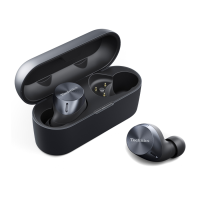
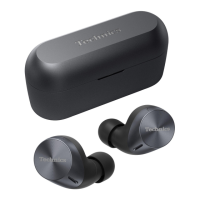
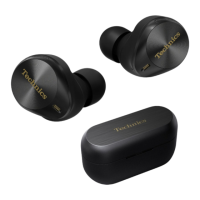
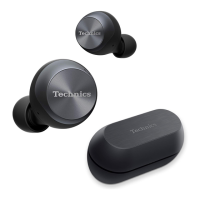
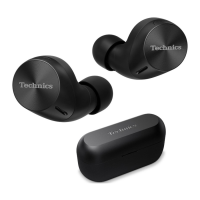
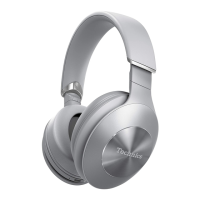
Use location services to find the headphones
You can find your lost headphones.
Important:
R When searching with location services, turn on location services in the smartphone in advance
and allow the app to access the location information of the smartphone.
1 In the home screen of the [Technics Audio Connect] app, tap [SETTINGS]®[Find
headphones].
2 Tap [Switch on].
R If [Switch on] is not displayed, go to step 4.
3 Follow the on-screen instructions.
4 Tap [Check position].
R The location information when the headphones and smartphone were last connected is
displayed.
Check Voice Focus AI (EAH-AZ100)
You can check the voice transmitted to the other party when you use the earphones to talk.
1 In the home screen of the [Technics Audio Connect] app, tap [Voice Focus AI Test].
2 Tap [Next].
3 Confirm that Voice Focus AI is [ON].
4 Tap [START] and talk.
R You will hear the voice (your voice) transmitted to the other party with a delay of about 2
seconds.
5 When you are finished checking, tap [STOP].
Check JustMyVoice (EAH-AZ80/EAH-AZ60M2)
You can check the voice transmitted to the other party when you use the earphones to talk.
1 In the home screen of the [Technics Audio Connect] app, tap [JustMyVoice test].
2 Tap [Next].
3 Confirm that JustMyVoice is [ON].
4 Tap [START] and talk.
R You will hear the voice (your voice) transmitted to the other party with a delay of about 2
seconds.
5 When you are finished checking, tap [STOP].
Usage Guide (EAH-AZ100)
Using your headphones and recommended settings.
52
Convenient Function



 To Next Page