1 In the home screen of the [Technics Audio Connect] app, tap [SETTINGS].
2 Tap [Usage Guide].
3 Tap [Using for the first time] or [Recommended settings].
4 Follow the on-screen instructions.
Set the language, messages, and screen
Note:
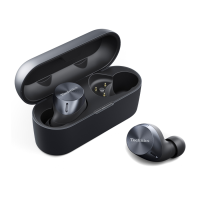
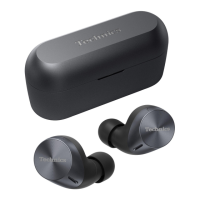
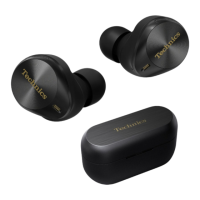
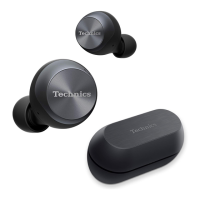
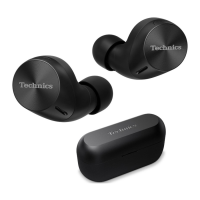
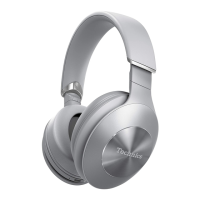
R The EAH-AZ100 automatically displays the body color of the connected headphones on the
home screen.
1 In the home screen of the [Technics Audio Connect] app, tap [SETTINGS].
2 Tap [Voice prompt language], [Customize voice prompt], [Headphone name], [Body
color] or [Customize home screen].
R Voice prompt language: Select the language of the headphone voice prompt.
R Customize voice prompt: Select the voice prompt and notification volume, and external
sound control and device connection messages.
R Headphone name: Edit the name displayed on the home screen.
R Body color (EAH-AZ80/EAH-AZ60M2/EAH-AZ40M2): Select the color of the earphones
displayed on the home screen.
R Customize home screen: Select the items you want to display on the home screen.
3 Follow the on-screen instructions.
Selecting the best earpiece for Active Noise Cancelling
(EAH-AZ100/EAH-AZ80/EAH-AZ60M2)
To maximize the noise cancelling effect, sound quality, call performance, etc., you can select the
best earpieces for your ears from the included earpieces.
Important:
R When selecting the best earpiece, make sure the version of the [Technics Audio Connect]
app, firmware, and voice prompt are the latest.
“Firmware updates”, Page 63
R Wear the earphones correctly.
“EAH-AZ100”, Page 29
“EAH-AZ80”, Page 30
“EAH-AZ60M2/EAH-AZ40M2”, Page 31
R Test in a quiet environment.
1 In the home screen of the [Technics Audio Connect] app, tap [SETTINGS].
2 Tap [Selecting the best earpiece for Active Noise Cancelling]®[Next]®[Next].
3 Tap [Select the size] for earphone (L), select the current earpiece attached to the
earphone, and tap [OK].
4 Tap [Select the size] for earphone (R), select the current earpiece attached to the
earphone, and tap [OK].
53
Convenient Function



 To Next Page