FAQ for the smartphone app (Technics Audio
Connect)
Q01. What products can I use with Technics Audio Connect?
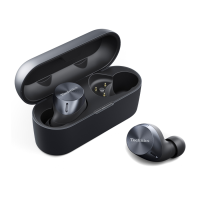
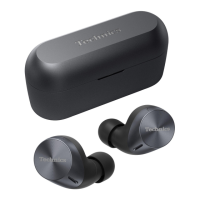
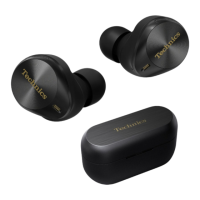
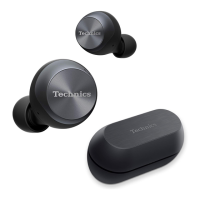
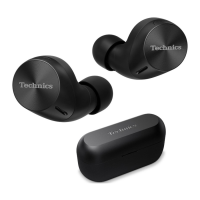
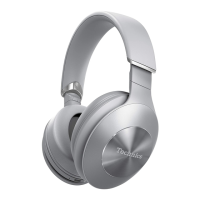
R EAH-AZ70W, EAH-AZ60, EAH-AZ40, EAH-A800, EAH-AZ80, EAH-AZ60M2, EAH-AZ40M2,
EAH-AZ100 (as of December 2024)
R This manual describes instructions for EAH-AZ100, EAH-AZ80, EAH-AZ60M2 and
EAH-AZ40M2.
Q02. What devices can run Technics Audio Connect?
Android™ devices
R Operating system Android 9.0 or later. However, operation of the app on all Android™ devices
running these operating systems is not guaranteed.
iPhone/iPad/iPod touch
R Operating system iOS 15.0 or later. However, the app may not operate correctly depending on
the OS version.
Q03. What languages are supported?
R The app supports the display of Japanese, English, French, German, Spanish, Canadian
French, Italian, Polish, Russian, Ukrainian, Simplified Chinese, and Traditional Chinese. The
language switches automatically to match the language of the smartphone. The display is set
to English if the language is not Japanese, English, French, German, Spanish, Canadian
French, Italian, Polish, Russian, Ukrainian, Simplified Chinese, or Traditional Chinese.
Q04. How do I unpair the headphones?
R You cannot unpair from this app.
To unpair, remove the headphones from the Bluetooth
®
settings on the device.
Q05. Cannot connect to the headphones.
R When pairing new headphones or when the headphones are not paired, on the home screen
of the [Technics Audio Connect] app, tap [SETTINGS]®[Add headphones] and follow the
on-screen instructions. When the headphones are not connected, tap [Add headphones] in
the headphone list and follow the on-screen instructions.
R If you cannot connect to paired headphones, turn on the headphones and connect from the
Bluetooth
®
settings of your device.
R If your device is in airplane mode, turn off the mode.
R If the device’s Bluetooth
®
is off, turn it on.
R You may be able to connect by bringing the device and headphones closer together or by
turning off other Bluetooth
®
devices.
iPhone/iPad/iPod touch
R In iOS 15.0 or later, a Bluetooth
®
confirmation screen is displayed when you launch the app
for the first time. If you selected [Don’t Allow], follow the steps below to turn on Bluetooth
®
.
1 On the device, go to Settings>Privacy & Security (or Privacy)>Bluetooth>turn on [Audio
Connect].
2 Launch the app.
R If you cannot connect even after doing the above, follow the steps below to pair the
headphones and device again.
1 Close all apps running in the background.
2 Turn off the device’s Bluetooth
®
.
69
FAQ



 To Next Page