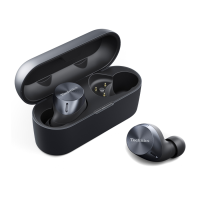
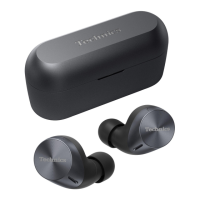
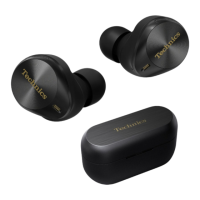
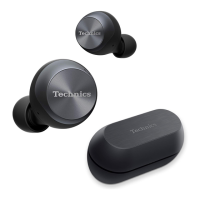
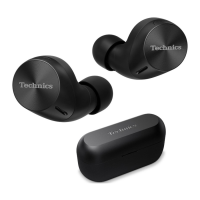
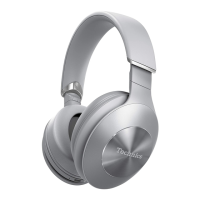
Voice assistant (EAH-AZ100)
You can activate your smartphone’s voice assistant by operating this device.
1 In the home screen of the [Technics Audio Connect] app, tap [SETTINGS].
2 Tap [Voice assistant].
3 Turn on [Voice assistant on your smartphone].
4 Follow the on-screen instructions.
Select a voice assistant (EAH-AZ80/EAH-AZ60M2/
EAH-AZ40M2)
1 In the home screen of the [Technics Audio Connect] app, tap [SETTINGS].
2 Tap [Select voice assistant].
3 Select a voice assistant.
4 Follow the on-screen instructions.
Set maintenance notifications
Regular maintenance is required to use this unit comfortably.
You will be informed about maintaining the earphones and earpieces regularly.
1 In the home screen of the [Technics Audio Connect] app, tap [SETTINGS].
2 Turn on [Maintenance notification].
R You can tap [Website with maintenance tips] to check the maintenance procedure.
Reset the app
1 In the home screen of the [Technics Audio Connect] app, tap [SETTINGS].
2 Tap [About the application].
3 Tap [Reset app].
4 Tap [Reset].
5 Follow the on-screen instructions.
Reset the headphones to factory settings
1 In the home screen of the [Technics Audio Connect] app, tap [SETTINGS].
2 Tap [Headphone information].
62
Convenient Function



 To Next Page