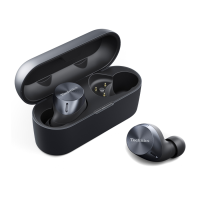
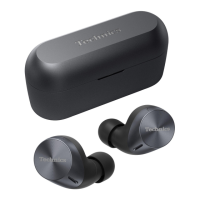
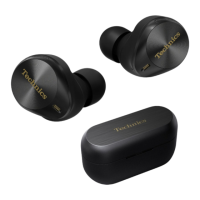
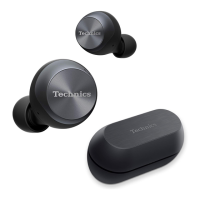
Suppress sounds around the other party
1 In the home screen of the [Technics Audio Connect] app, tap [SETTINGS].
2 Tap [Usage Guide].
3 Tap [Recommended settings].
4 Tap [Set] for [Suppress sounds around the other party during a call].
5 Tap [OK].
R It will operate as follows:
Touch the touch sensor (R) three times during a call to enable [Suppress sounds
around the other party].
R When the call ends, [Suppress sounds around the other party] will be disabled.
Note:
R You may not be able to hear sounds other than the person’s voice, such as call waiting.
One-touch Conversation Mode (EAH-AZ100)
When someone speaks to you while music is playing, touching the touch sensor will pause the
music and emphasize the other person’s voice.
This makes it easier to have a conversation even while wearing the earphones.
1 In the home screen of the [Technics Audio Connect] app, tap [SETTINGS].
2 Tap [Usage Guide].
3 Tap [Recommended settings].
4 Tap [Set] for [One-touch Conversation Mode].
5 Tap [OK].
R It will operate as follows:
Touching the touch sensor (R) while music is playing will enable [Ambient Sound] and
[Attention].
R Touching it again will resume the music playback.
Select a level of background noise reduction (EAH-AZ80/
EAH-AZ60M2/EAH-AZ40M2)
Set a level that reduces background noise from the other party during a call.
1 In the home screen of the [Technics Audio Connect] app, tap [SETTINGS].
2 Tap [Level of background noise reduction].
3 Select a level.
R Select “Normal” if the other party’s environment is relatively quiet, or “Strong” if the other
party’s environment is noisy (constant noise such as a ventilation fan).
61
Convenient Function



 To Next Page