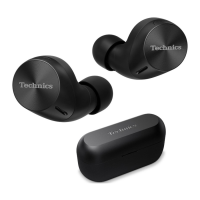
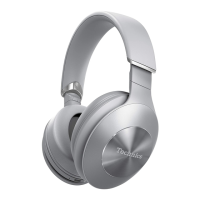
3 Reset the headphones to factory settings.
“EAH-AZ100”, Page 74
“EAH-AZ80/EAH-AZ60M2/EAH-AZ40M2”, Page 74
4 Turn on the device’s Bluetooth
®
.
5 Delete the headphone registration information from the device’s Bluetooth
®
settings.
6 Pair the headphones and device again.
“Use the app to pair with a Bluetooth
®
device”, Page 34
“Pair with a Bluetooth
®
device without the app”, Page 35
Q06. Cannot update the firmware.
R Connect the device to the Internet.
R Check if the firmware version is the latest from [SETTINGS] on the home screen of the
[Technics Audio Connect] app®[Headphone information].
R If the transfer of the firmware to the headphones does not start, or if the number stops and
does not progress during transfer, try the following methods.
[Method 1]
1 Confirm that the remaining charge for both earphones (L and R) is at least 70%.
2 Keep the headphones out of the charging cradle from the start to the end of the transfer/
update.
R After starting the transfer/update, do not make calls or play music until the end of the
update.
[Method 2] *If Method 1 does not resolve the problem
1 Force close the app.
2 Launch the app again.
R If the firmware update notification is not displayed, allow notifications.
Android™ devices
70
FAQ



 To Next Page