21
71504138-0-003
EN
10 - STARTING THE UTILITY FUNCTIONS
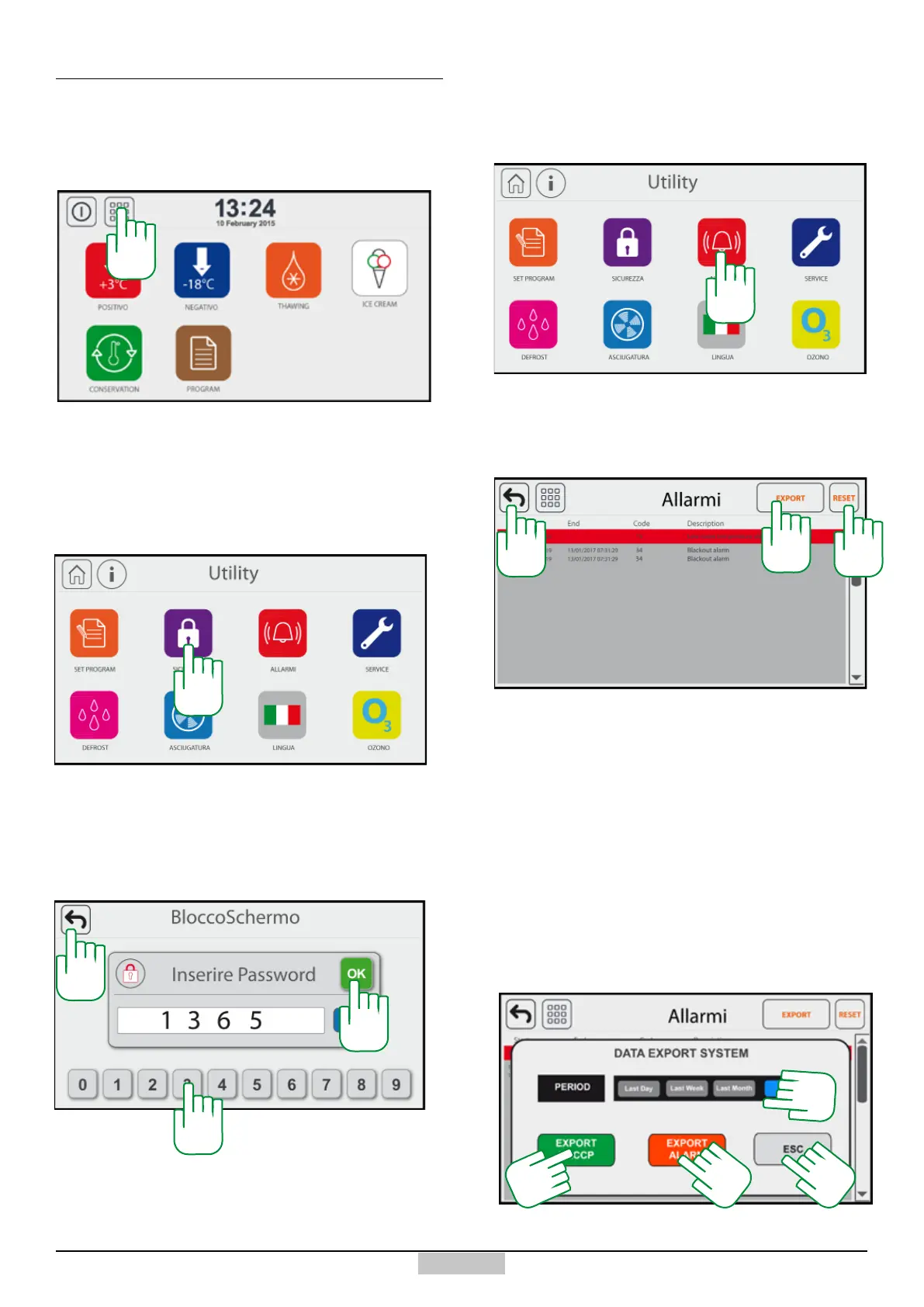
In order to access the Utility window, press the icon
[209] from the main menu.
10.1 - Access to UTILITY window
If you want to lock the typing on the display, even after
starting a cycle, in order to avoid unauthorised access
during operation, press the icon [210]
10.2 - Display LOCK function
210
Type on the keyboard [211], the password 1365, and
conrm using the OK key [212]. From now on, the
display can no longer be used, unless you type again
the Password 1365, which will unlock the display.
211
212
213
In order to exit the password window, press the icon
[213].
If you enter an incorrect password, you will be prompted
by a message, and you will be prompted again to enter it.
If you want to view the list of stored alarms and current
alarms, press the icon [213]
10.3 - List/Export of alarms
213
The triggered alarms will have a grey background, the
current alarms will have a red background (the date and
time of the alarm end will not be present). In order to reset
the triggered alarm situations, press the Reset key [214].
214
215
216
in order to exit the alarms window, press the icon [216].
From every alarm, you can export a txt le which will
be stored on ash drive, entered in the USB port. The
stored les will have the following name:
20170331-14.11-AL13.txt
The first part of the txt file name contains the
year+month+day separated by a “-” and followed by
the hour and minute of registering of the alarm, then
followed by the type of alarm. In order to export the alarm
OR HACCP les, press the key [215], which will allow
opening the following window:
209
217
218
219
220



 To Next Page