Chapter 2 – Using the F4T Front Panel
TestEquity F4T Controller Page 11
Chamber Functions (Output Widget)
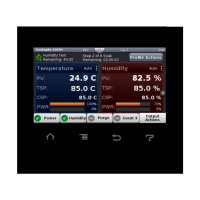
Chamber functions can be turned ON/OFF using the buttons on the Output Widget. The buttons
may be named differently depending on your model chamber. The buttons can be pressed to
toggle the functions ON/OFF in manual mode or while a profile is running.
The image below shows an F4T with Power, Humidity Purge, and Event 4 in the output widget.
Below is a summary of some typical button functions.
Power: Turns the chamber ON/OFF. On some models, the front panel rocker switch (labeled
CONDITIONING or TEMP depending on the model) must also be in the EVENT 1 position in
order for this button to be active. If the CONDITIONING or TEMP switch is in the ON position,
then the chamber will be on at all times, regardless of the F4T Power button status.
Humidity: For humidity chambers (Models 123H/HS, 1007H, 1016H) only. This button turns
the humidity system ON/OFF.
Purge: For chambers with GN2 or Dry Air Purge options. This button turns the purge system
ON/OFF. Note: Your chamber may have a Purge button even if the option is not installed.
LN2: For Model 3007C only. This button turns the LN2 system ON/OFF. Note: Your Model
3007C chamber may have an LN2 button even if the option is not installed.
Event 2 through 4: The remaining available outputs will vary depending on the model. Turns
uncommitted event outputs ON/OFF for customer use. Events 5 through 7 are located in the
Operation Screen > Profile Events submenu.


 To Next Page
