Chapter 3: Function Graphing 81
Note: You can adjust all window variables from the VARS menu by pressing 1:Window and
then selecting the variable from the
X/Y, T/q, or U/V/W menu.
Zoom Cursor
When you select
1:ZBox, 2:Zoom In, or 3:Zoom Out, the cursor on the graph becomes the zoom
cursor (
+), a smaller version of the free-moving cursor (+).
ZBox
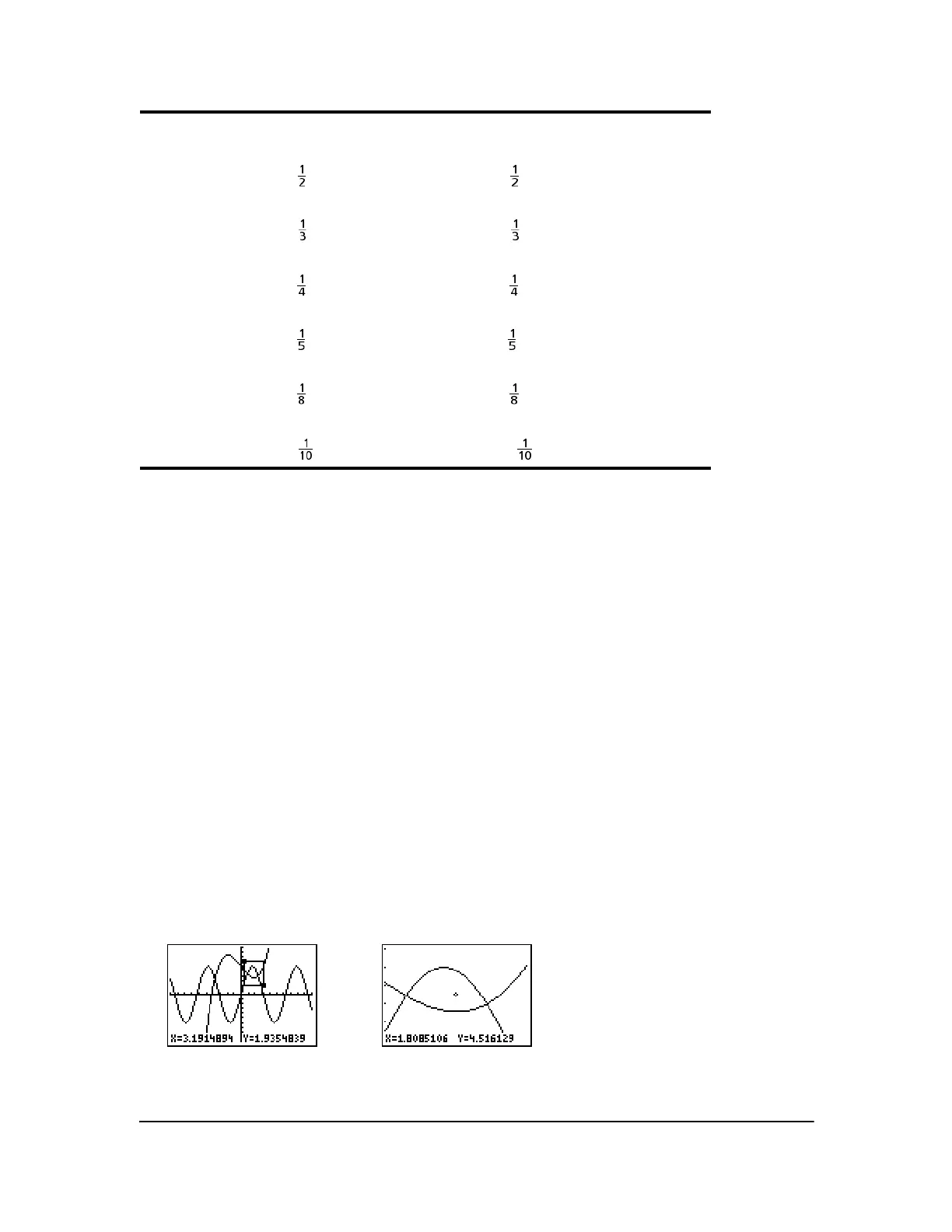
To define a new viewing window using
ZBox, follow these steps.
1. Select 1:ZBox from the ZOOM menu. The zoom cursor is displayed at the center of the screen.
2. Move the zoom cursor to any spot you want to define as a corner of the box, and then press
Í. When you move the cursor away from the first defined corner, a small, square dot
indicates the spot.
3. Press |, }, ~, or †. As you move the cursor, the sides of the box lengthen or shorten
proportionately on the screen.
Note: To cancel ZBox before you press Í, press ‘.
4. When you have defined the box, press Í to replot the graph.
B: ZFrac1/2
Sets the window variables so that you can trace in increments of
, if possible. Sets
@X and @Y to .
C: ZFrac1/3
Sets the window variables so that you can trace in increments of
, if possible. Sets
@X and @Y to .
D: ZFrac1/4
Sets the window variables so that you can trace in increments of
, if possible. Sets
@X and @Y to .
E: ZFrac1/5
Sets the window variables so that you can trace in increments of
, if possible. Sets @X and @Y to .
F: ZFrac1/8
Sets the window variables so that you can trace in increments of
, if possible. Sets
@X and @Y to .
G: ZFrac1/10
Sets the window variables so that you can trace in increments of
, if possible. Sets @X and @Y to .
ZOOM MEMORY


 To Next Page
 Loading...











