© 2016 THINKWARE. All rights reserved.
Confidential Restricted
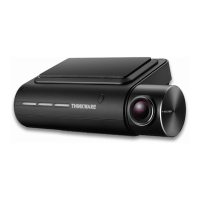
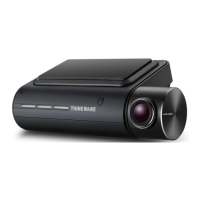
FAQ (Cannot connect Wi-Fi _ F750)
Symptoms Diagnosis and troubleshooting plans
Cannot connect
Wi-Fi
When you cannot connect Wi-Fi on mobile app, check the
following steps.
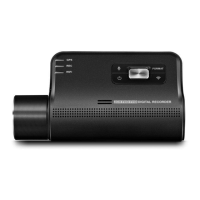
1. Press briefly the Wi-Fi button on the dash cam to enter
Wi-Fi connection mode.
2. Device will sound “Wi-Fi enabled”
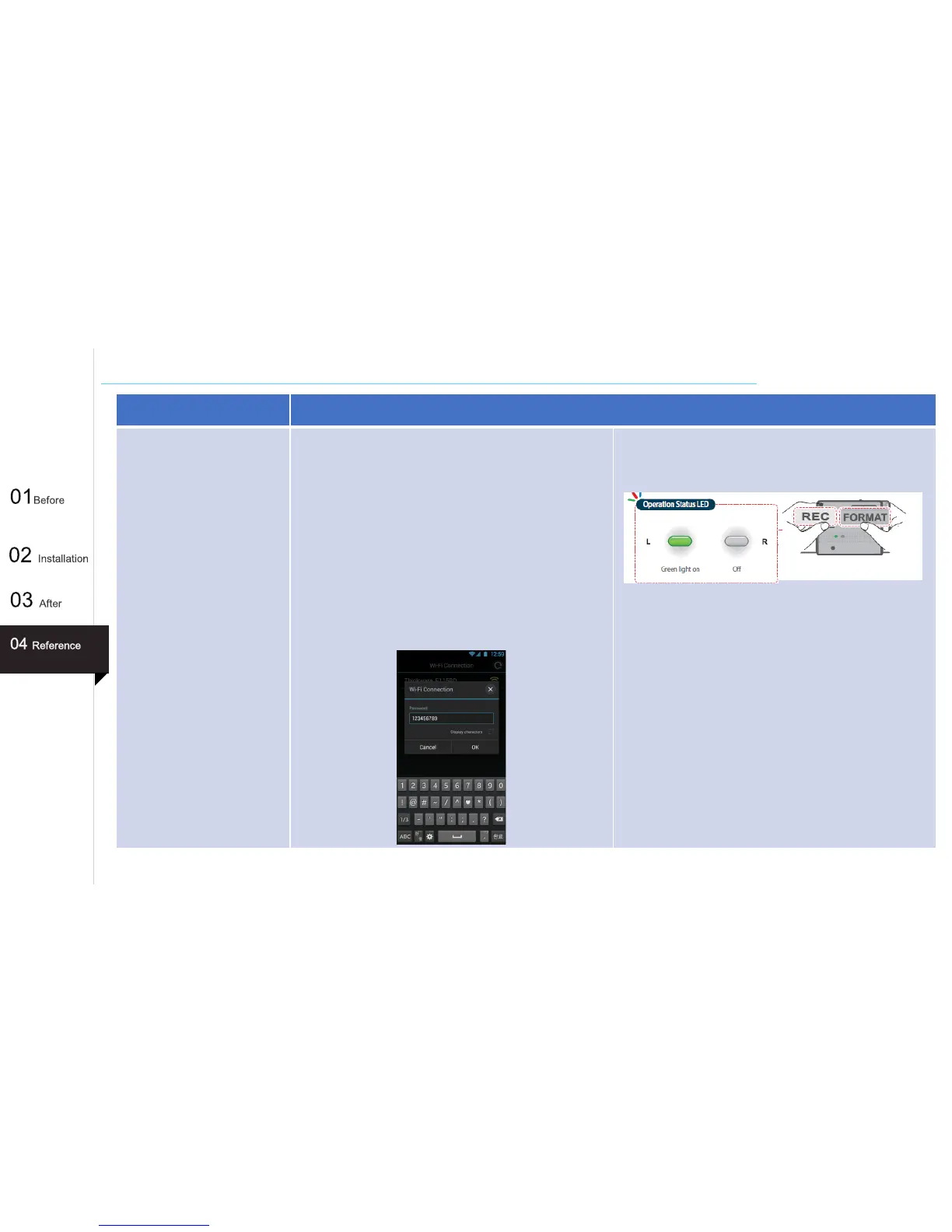
3. Make sure to turn on the Wi-Fi in the device setting. In
the Thinkware Dash Cam Mobile Viewer application, turn
on the Wi-Fi option, select “Thinkware_000000” from
SSID list, and enter password as “123456789” Password
is only required during first time you try to connect. The
device will auto-connect in subsequent connections.
4. If password is not correct or cannot connect Wi-Fi, press
and hold REC and FORMAT buttons simultaneously to
reset the device settings to default factory.
5. After initialize, Wi-Fi password will be changed
to ”123456789”. Enter password to connect Wi-Fi again.
6. If there is no SSID list such as “Thinkware_000000” on
smartphone, turn off the dash cam and then boot on to
connect again.
※ Dash cam will automatically turn off the Wi-Fi connection


 To Next Page