Portable Connector End Face Geometry Interferometer Chapter 7: Toolbar Functions
Rev B, April 16, 2019 Page 34
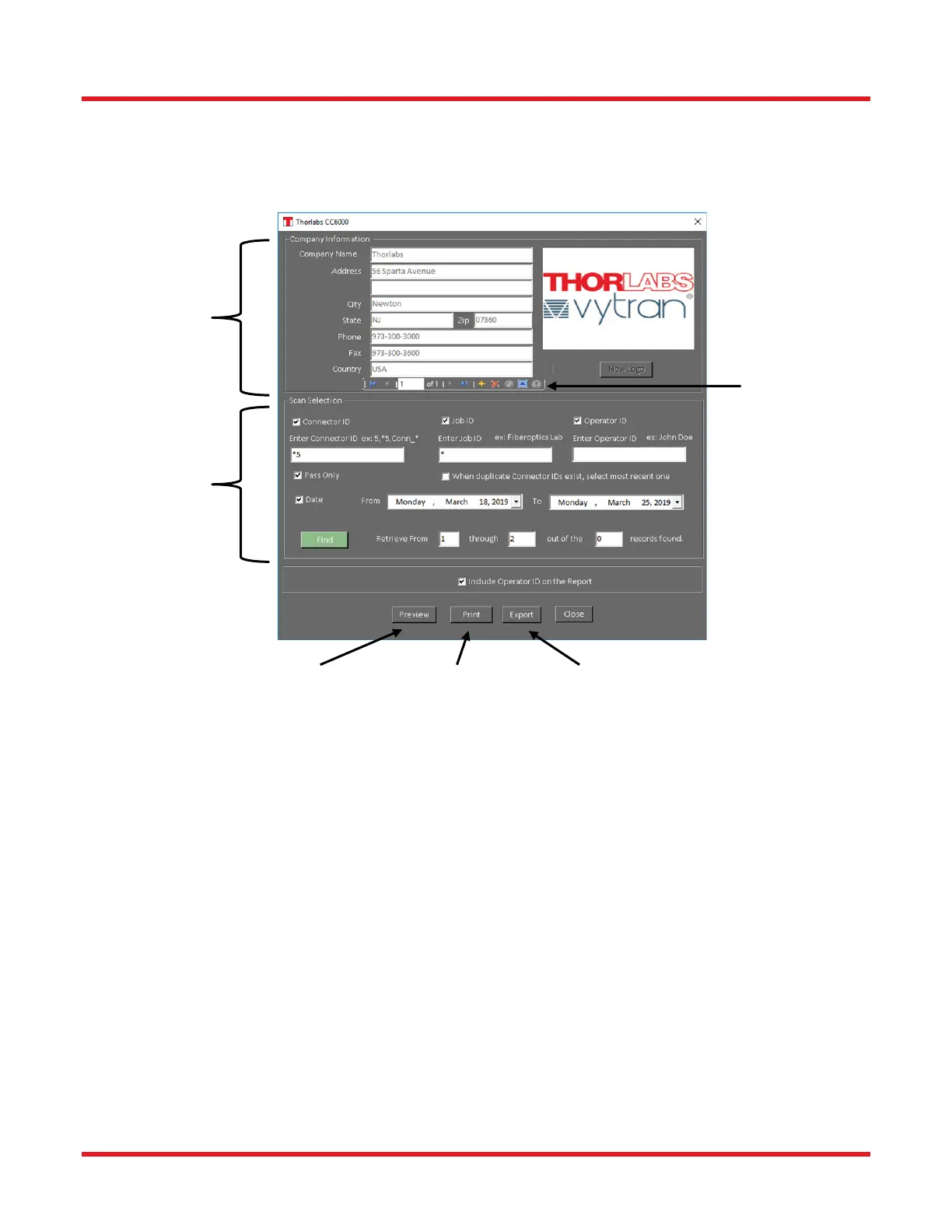
When clicked, the Generate Report dialog appears. In its top section, users can define company information and
logo that appear on a scan report. In the bottom section, users can choose which stored scans and to what form of
output the reports will be generated. For more information on report output to screen and printer or for file export,
see page 37.
7.1.4.1 Description of Dialog:
Company Information: All the fields in this section can only be changed if user enters Edit mode by clicking the
navigation tools Edit Record button. Also, once in Edit mode the Insert New Logo button will appear which, when
clicked, allows adding or changing a company logo for a scan report. To save any changes made in the Company
Information section, one must click the navigation tools Save Changes button, or click Cancel Edit button to undo
changes.
• Company Name: Enter name of Company.
• Address: Enter the street address of the company. There are two lines available if needed.
• City: Enter city of company.
• State: Enter state of company
• Zip: Enter zip code of company
• Phone: Enter phone number of company.
• Fax: Enter fax number of the company.
• Country: Enter the country of the company.


 To Next Page