Portable Connector End Face Geometry Interferometer Chapter 7: Toolbar Functions
Rev B, April 16, 2019 Page 36
• Pass Only: Check this option to limit reports to only those scans that passed
• When duplicate Connector IDs exist, select most recent one: Check this option to select one scan per
Connector ID.
• Date: Use this option to choose scans for reporting by scan date, specifying a date range with FROM and
TO choices.
After selecting and configuring any or all search options, click on the “Find” button to view how many scans match
the selection criteria. If it is desired to generate reports for less than the total number of scans found, enter a range
into “Retrieve From” box and “through” box. When ready to generate reports, click Preview, Print or Export buttons.
Include Operator ID: Check this option to make Operator ID visible at the bottom of the Report.
Preview:
To Preview on Screen before printing or exporting: To view the report(s) on screen enter the desired number
and choice of reports to be viewed and click Preview button.
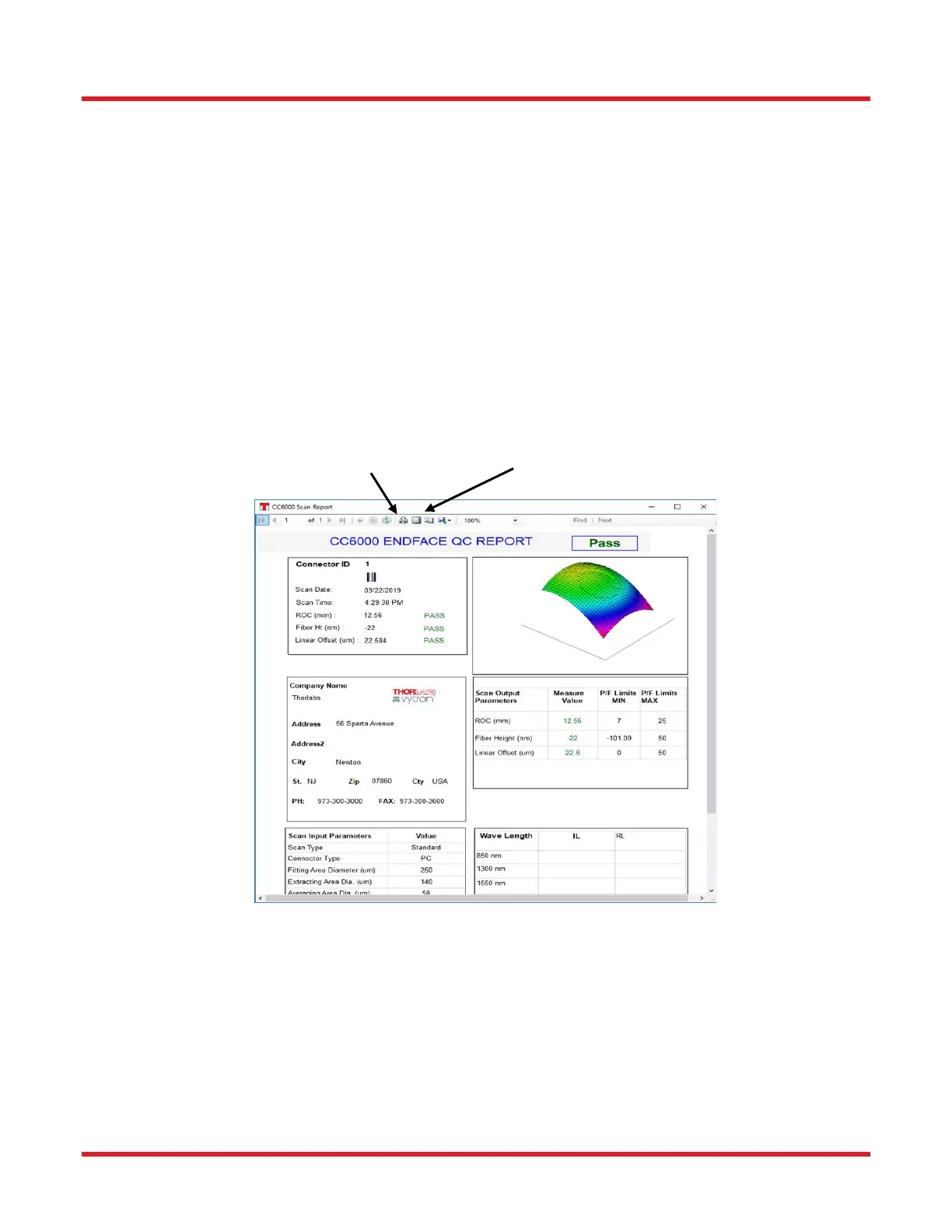
The top bar of the ReportViewer dialog that appears contains the amount and index for the set of reports as well as
button/icons for printing and exporting any or all of the reports from this Viewer dialog. One can print all or a subset
of total reports (when preview includes multiple scans). To print all reports, click the “Print” button on top of the
dialog and accept default settings. To print a subset; first note page number(s) in the preview for desired report(s)
and then click the print button, select those pages, and proceed with printing. As usual, multiple copies of the chosen
reports can also be selected at this time, as well as which printer to use. To export the entire set of chosen reports
into a file, click the Export button/icon in the Viewer dialog and choose a desired format (PDF, Microsoft XLS, or
Microsoft Word).



 To Next Page