Phoenix Pro User Manual
21
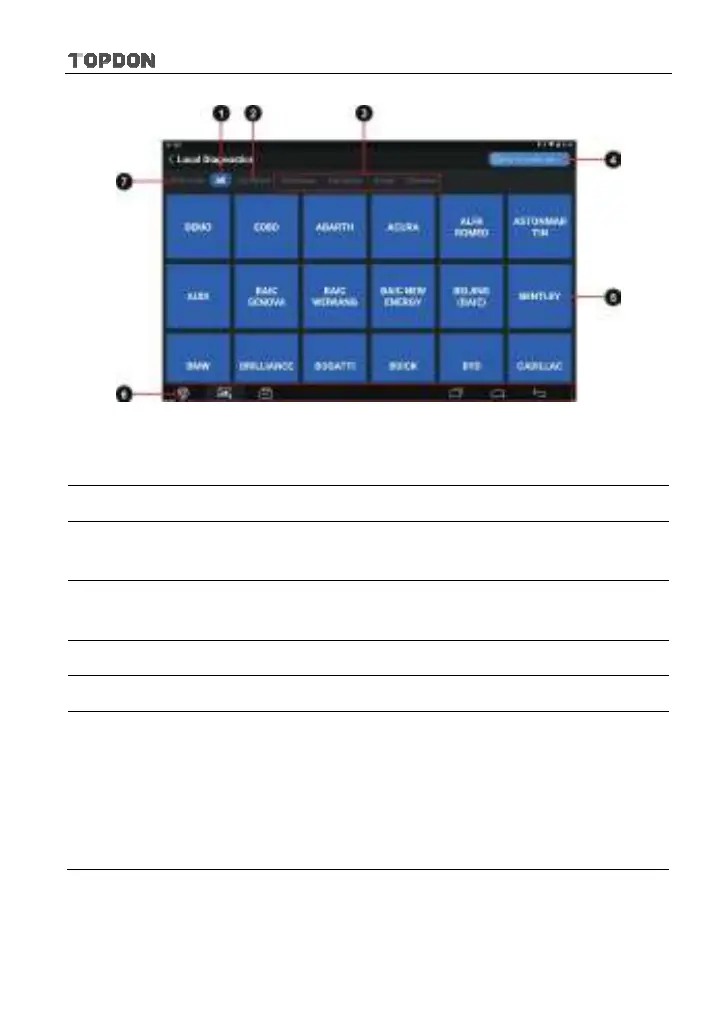
Fig. 4-8
1
All
Tab: Displays all the vehicle makes in the vehicle menu.
2
Common
Tab: Displays all the recently tested vehicle makes.
3
Vehicle region buttons: Tap different buttons to switch to corresponding
vehicles.
4
Search bar: Enables you to use the virtual keyboard to quickly locate
the vehicle model. Input the desired vehicle model to start searching.
5 Vehicle model display area
6 Locator & navigation buttons: Refer to Chapter 3.6 for details.
7
INSCAN
button: Tap it to scan the Vehicle Identification Number
(VIN) code of your vehicle. Camera Scan and Enter VIN are included.
This function does not apply to the commercial vehicles.
*Note: Before using this function, the corresponding diagnostic software and
Auto search file need to be downloaded on your tool first while downloading
the diagnostic software.
4.2.4 Diagnostics toolbar
The diagnostics toolbar contains a number of buttons that allow you to print the
displayed data or make other controls. It is displayed on the upper right corner of



 To Next Page