Phoenix Pro User Manual
48
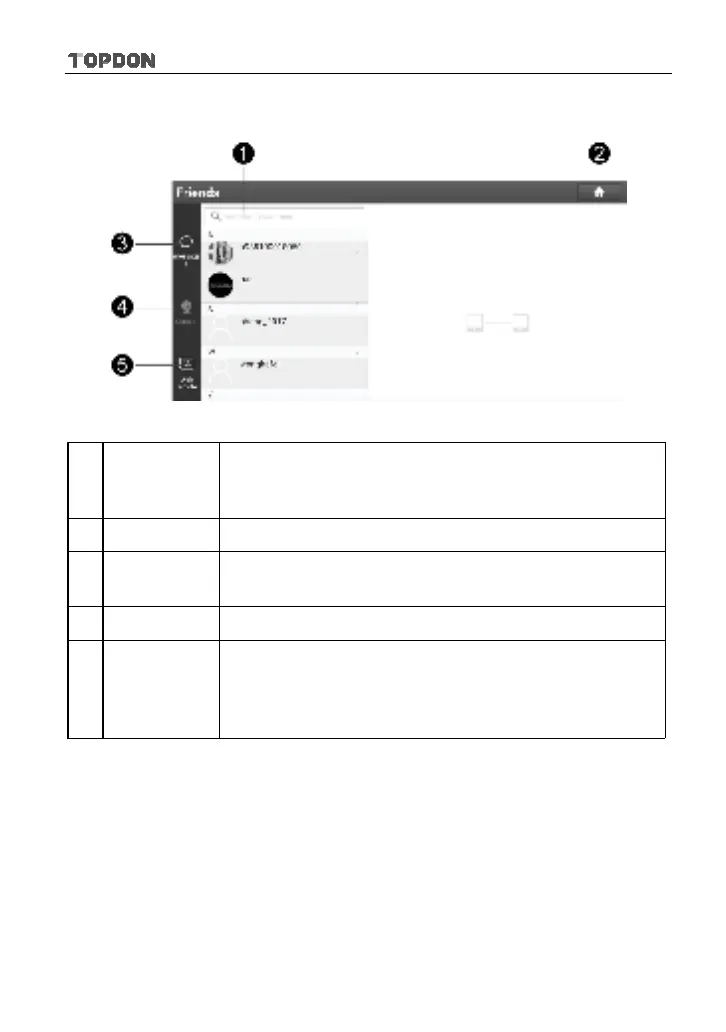
5.3.1 Interface Layout
Fig. 5-33
1 Search bar
Directly input the username of the Phoenix Pro to start
searching, and then tap the desired one to add it into your
friend list.
2 Home button Tap it to navigate to the Job menu screen.
3 Message tab
Once an incoming message reaches, a red dot will appear
on the upper right corner of the tab.
4 Contact tab Tap to enter the friend list.
5
WEB Remote
switch
Tap to slide the switch to ON, the Phoenix Pro keeps
online and becomes visible on the web client. In this case,
inform the technician of your product S/N, and he/she will
control your Phoenix Pro remotely.
5.3.2 Add Friends
Tap “Contact” to enter the contact page. By default it appears blank.
In the search bar, input the partner’s username and tap “Search” button next to
the search bar to starts searching for it from golo business database.
The partner must be the users who have registered their diagnostic tools. They
may be the following:
y
Workshop
y
Technician




 To Next Page