Phoenix Pro User Manual
49
y
golo users
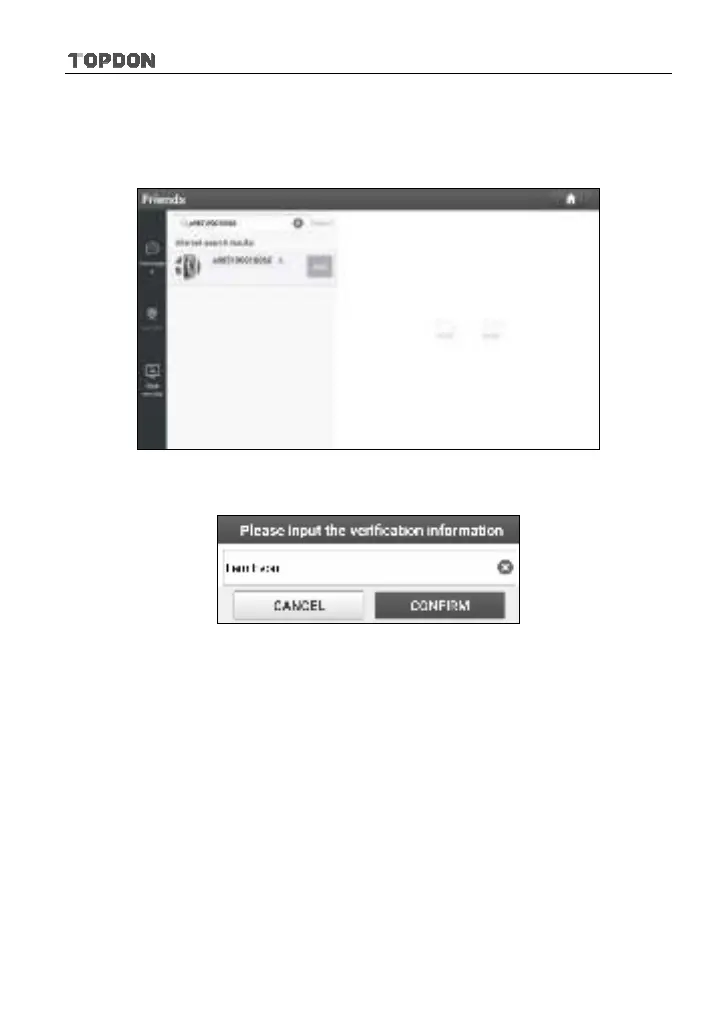
Once the result matches the keyword, a screen similar to the following will
appear:
Fig. 5-34
Tap “Add”, a dialog box pops up:
Fig. 5-35
Tap “CONFIRM” to send your request.
Once the partner receives the request, a beep will sound. Tap the “Message”
tab:
• Once the partner agreed your request, he/she will automatically be listed in
the Contact tab.
• If a technician sent you a friend request, you can tap “Agree” to confirm and
his/her name will appear in the friend list (Contact). Or tap “Ignore” to ignore
this request.
5.3.3 Start Instant Messaging
*Note: The I/M (Instant Messaging) function is open to all users who had a diagnostic
tool equipped with this module.





 To Next Page