Phoenix Pro User Manual
39
*Note: For workshop information, tap “Change” to revise it. Alternatively you can also
set it in “User Info” -> “Settings” -> “Print Information”.
Once you configured the information, it will be automatically generated every time you
saved the diagnostic report. All vehicle and workshop information will be appended as
tags on the diagnostic report.
To ignore the workshop information, tap “Skip” to go to the report details page.
On the report details page, tap “Save” to save it. All diagnostic reports can be
accessed from “Personal Center” -> “My Reports” -> “Health Report”.
5.2.2 System Scan
This option allows you to quickly scan which systems are installed on the
vehicle.
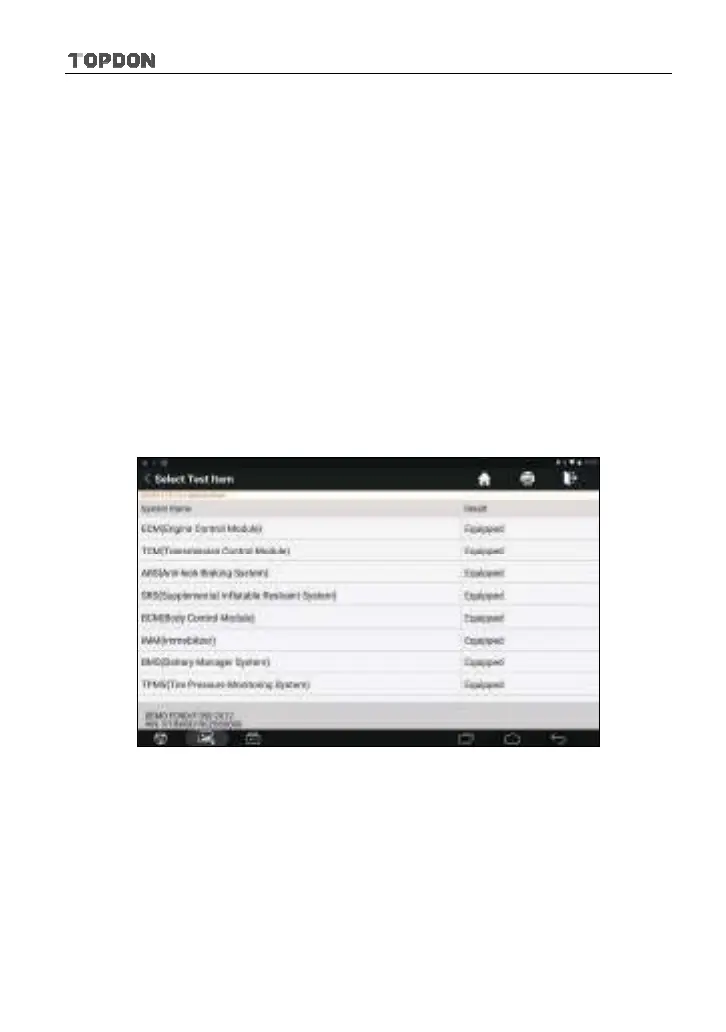
In Fig. 5-17, tap “System Scan”, the system start scanning the systems. Once
the scanning is complete, the screen will display the result.
Fig. 5-22
Tap the desired system to advance to the test function selection page. For
detailed operations on test function, please refer to Chapter 5.2.3.
5.2.3 System Selection
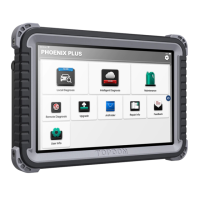
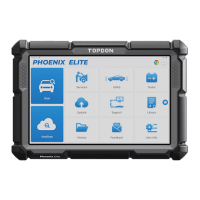
This option allows you manually select the test system and function step by step.
In Fig. 5-17, tap “System Selection”, the screen displays as follows:




 To Next Page