250
2. SETUP
RAV4_Navi+MM_OM42A43U_(U)
15.08.10 11:04
Deleting contacts in the favorites list in a
different way (from the “Contacts”
screen)
1 Display the phone top screen.
(P.225)
2 Select the “Contacts” tab.
3 Select at the beginning of the con-
tact list name to be deleted from the fa-
vorites list.
When selected, is changed to , and
the data is deleted from the list.
Deleting contacts in the favorites list in a
different way (from the “Contact Details”
screen)
1 Display the phone top screen.
(P.225)
2 Select the “Contacts”, “Call History”
tab or the “Favorites” tab and select
the desired contact to delete.
3 Select “Remove Favorite”.
4 Select “Yes” when the confirmation
screen appears.
5 Check that a confirmation screen is
displayed when the operation is com-
plete.
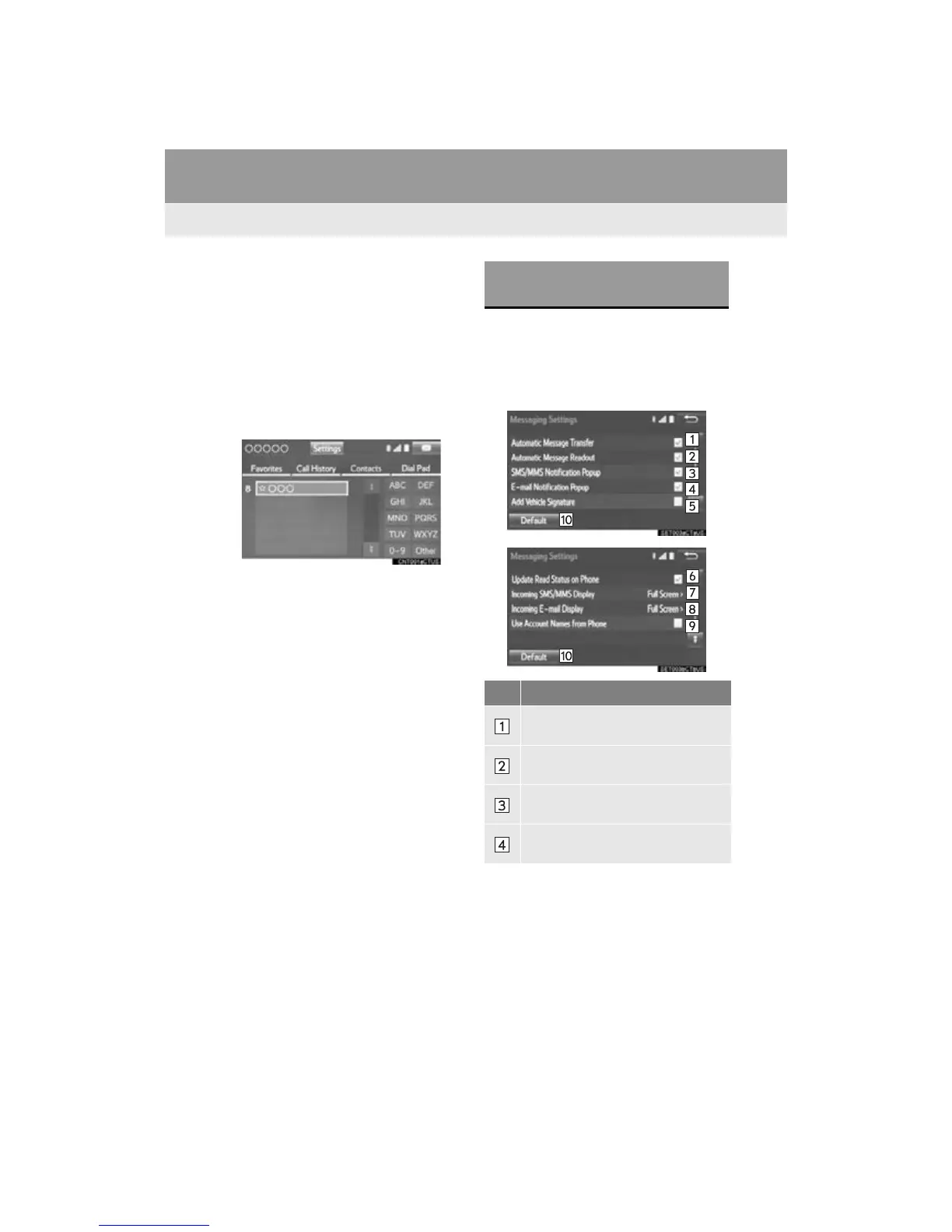
1 Display the “Phone/Message Settings”
screen. (P.240)
2 Select “Messaging Settings”.
3 Select the desired item to be set.
“Messaging Settings”
SCREEN
No.
Function
Select to set automatic message
transfer on/off.
Select to set automatic message
readout on/off.
Select to set the SMS/MMS notifica-
tion popup on/off.
Select to set the e-mail notification
popup on/off.


 To Next Page
 Loading...