Threat Protection System Hardware Specification and Installation Guide 37
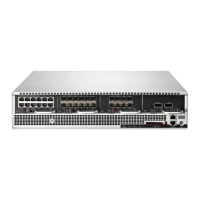
Connect the console port
Describes how to connect the console port.
1. Connect the RJ-45 null modem cable to the console port on the front of the unit.
2. Connect the other end of your cable (standard USB connector) to your computer.
Use the following terminal settings for the console port:
◦ Baud rate: 115.2 Kbps
◦ Character size: 8 bits
◦ Parity: None
◦ Stop Bits: One
◦ Flow Control: None
Connect the management port
Describes how to connect the management port.
1. Connect one end of the Category 5 Ethernet cable to the port labeled MGMT located on the front
panel.
2. Connect the other end of the Ethernet cable to your network. This enables remote management.
Turn on the device
After you have reviewed all requirements for operating your product, turn on the device:
• To turn on a TPS 440T device, flip the power switch on the back panel of the device.
• To turn on a TPS 2200T, 8200TX, or 8400TX security device, use the power button located on the front
panel of the device.
Check the LEDs
When you connect power to the device, the system completes a series of component checks. It then displays
LEDs to show the status of each component. For more information, see the LED status for your product:
• TPS TX Series device: Chassis – features on page 10
• TPS 2200T device: Chassis – features on page 22
• TPS 440T device: Chassis – features on page 29



 To Next Page