© Copyright 2013 TRENDnet. All Rights Reserved.
TRENDnet User’s Guide
TEG-448WS
14
Change administrator password and add accounts
System > Administration
This section explains how to change the administrator password create additional
administrative user accounts for access to the switch management page.
1. Log into your switch management page (see “Access your switch management page
”
on page 7).
2. Click on System, and click on Administration.
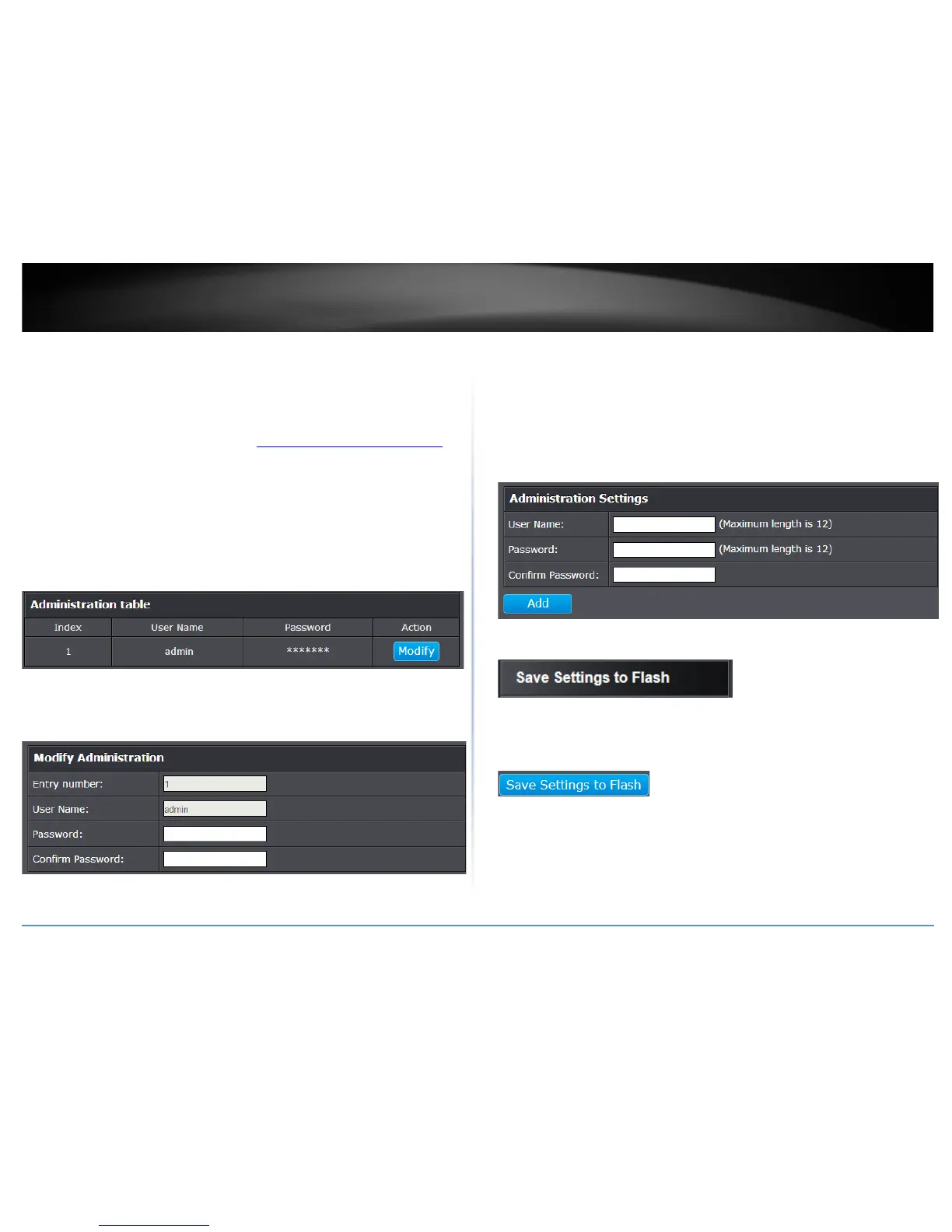
3. Review the settings.
To change the administrator password, in the “admin” entry in the table, click on
Modify. Note: This default administrator account cannot be deleted.
In the Password field, enter the new password and enter the new password again the
Confirm Password field to verify. Then, click Apply.
Note: The password consists of up to 12 alphanumeric characters.
To create additional administrative user accounts:
• User Name: Enter the user name of the new account.
• Password: Enter the password for the new acocunt and enter the password
again the Confirm Password field to verify. Then, click Add to add to the table.
For additional user accounts, you will be provided the option to Modify or
Delete to remove the account.
Note: The password consists of up to 12 alphanumeric characters.
.
4. Click Save Settings to Flash (menu).
5. Click Save Settings to Flash (button), then click OK.
Note: This step saves all configuration changes to the NV-RAM to ensure that if the
switch is rebooted or power cycled, the configuration changes will still be applied.







 To Next Page