© Copyright 2013 TRENDnet. All Rights Reserved.
TRENDnet User’s Guide
TEG-448WS
37
Configure the VLAN Forwarding Table Mode
Bridge > VLAN > Forwarding Table Mode
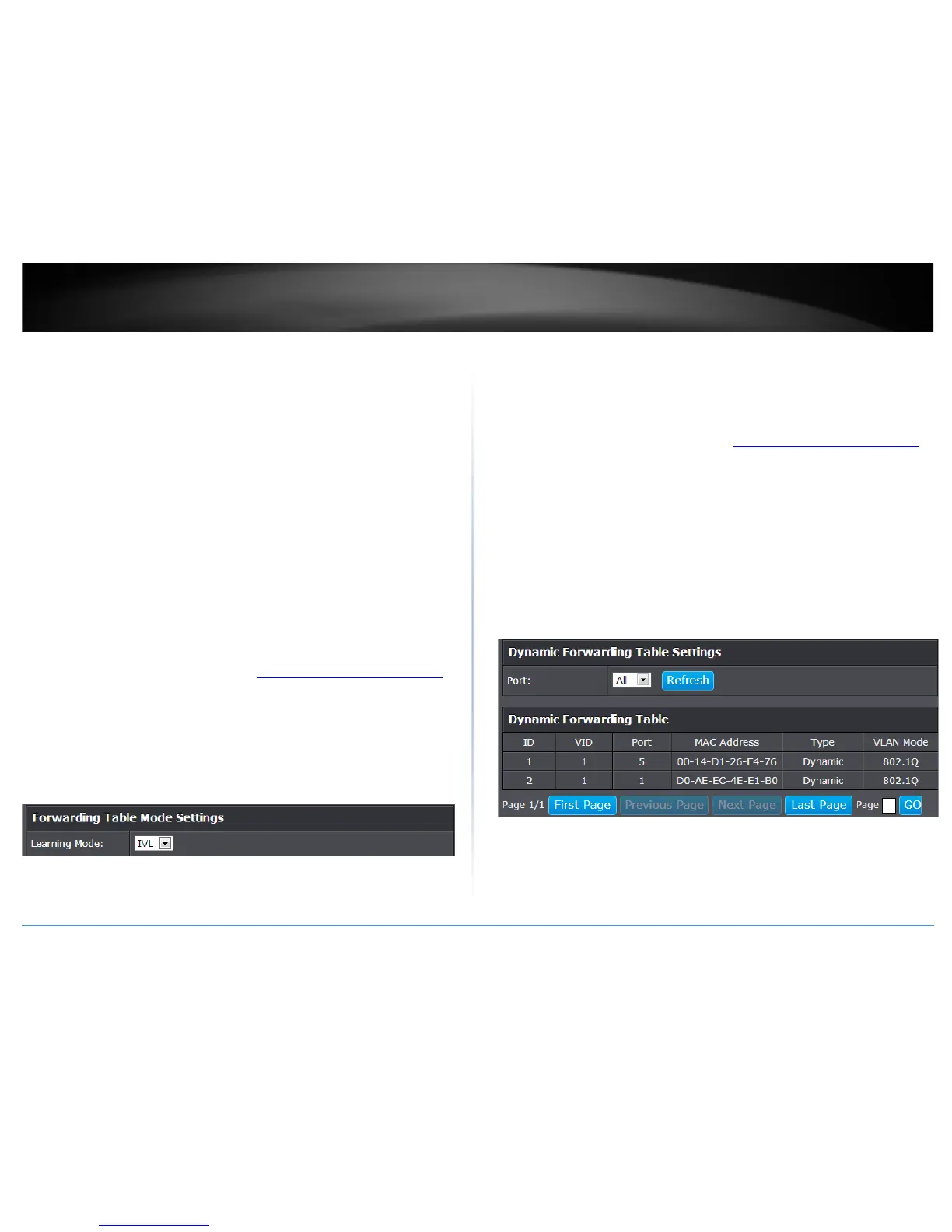
This section allows you to configure your switch to standard 802.1Q VLAN mode (IVL) or
Asymmetric VLAN mode (SVL). Asymmetric VLAN allows the configuration of
overlapping untagged VLAN ports in order to create VLAN groups. It is recommended to
use the standard 802.1Q VLAN mode when possible.
IVL – Independent VLAN Learning
SVL – Shared VLAN Learning
Please note the following when switching between forwarding table modes:
• FDB (Forwarding Database) will be cleared.
• Static Unicast Address entries will be cleared.
• Static Multicast Address entries will be cleared.
• 802.1X authenticated records will be cleared.
• IGMP Snooping multicast group addresses will be cleared
• When using SVL mode, Voice VLAN will not be supported.
• When using SVL mode, the VID field on 802.1Q-VLAN mode will be displayed as
"N/A".
1. Log into your switch management page (see “Access your switch management page
”
on page 7).
2. Click on Bridge, click on VLAN, and click on Forwarding Table Mode.
3. Click the learning mode drop-down list to select the forwarding table mode and click
Apply to save settings.
Note: The default mode is IVL.
4. Click Save Settings to Flash (menu).
5. Click Save Settings to Flash (button), then click OK.
View the switch VLAN dynamic forwarding table
Bridge > VLAN > Dynamic Forwarding Table
This section allows you to view the VLAN forwarding table with dynamically generated
forwarding table entries as devices more devices are connected to your switch.
1. Log into your switch management page (see “Access your switch management page
”
on page 7).
2. Click on Bridge, click on VLAN, and click on Dynamic Forwarding Table.
3. By default, forwarding entries for all ports are listed. You can click the Port drop-
down list to select a specific port to view only the forwarding entries for the selected
port.
If the entries span multiple pages, you can navigate page number in the Page field and
click Go or you can click First, Previous, Next, and Last Page to navigate the pages.







 To Next Page