Basic Router Settings
Access your router management page
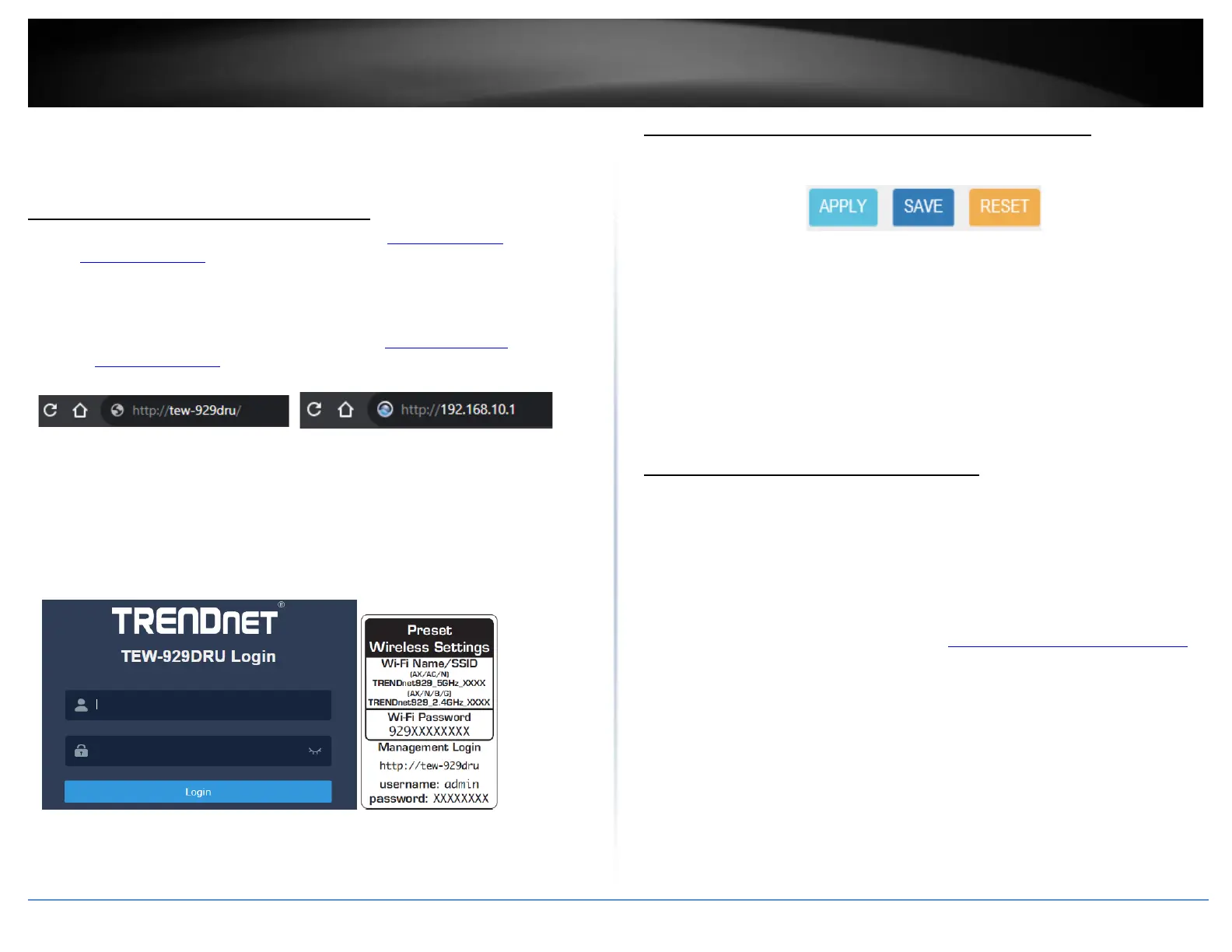
Note: Your router management page URL/domain name http://tew-929dru or IP
address http://192.168.10.1 is accessed through the use of your Internet web browser
(e.g. Internet Explorer®, Firefox®, Chrome™, Safari®, Opera™) and will be referenced
frequently in this User’s Guide.
1. Open your web browser and go to URL/domain name http://tew-929dru/ or IP
address http://192.168.10.1. Your router will prompt you for a user name and
password.
2. For added security, the router is pre-configured with a unique administrator
password. You can find the Password on the sticker included in the router package
contents or on the device label located on the bottom of the router. Enter your
Username and Password, then click LOGIN.
• User Name: admin
• Password: (xxxxxxxx)
Note: User Name and Password are case sensitive.
Saving and applying router configuration changes
In the router management page, pages may include all, some, or one of the options
below. Some configuration changes may require a device reboot.
• Reset – Clicking this option will reset all settings to their previous configuration
on a specific page.
• Apply – Clicking this option will save and apply the configuration changes on a
specific page which will take effect immediately.
• Save – Clicking this option will temporarily save the changes and allow you to
temporarily save multiple configuration changes and apply all configuration
changes at the same time. When you are ready to save and apply the
configuration changes permanently, click on the notification in the top right
corner.
Change your administrator password
Administrator > Administration
By default, the administrator password has been pre-configured a unique password for
your convenience. You can find the pre-configured administrator password on the
wireless sticker included in your router package contents or also located on the router
device label located on the bottom of the device. This section will allow you to change
the default administrator password used to log into your router management page.
1. Log into your router management page (see “Access your router management page”
on page 6).
2. Click on Management and click on Administration.
3. Enter the new administrator username/password in the User Name, Old Password,
New Password field and re-type the new password in the Confirmation field. Click
Apply to save and commit the changes.
Note: The idle timeout setting is used to define the period of inactivity in the router
management page before automatically logging out.







 To Next Page