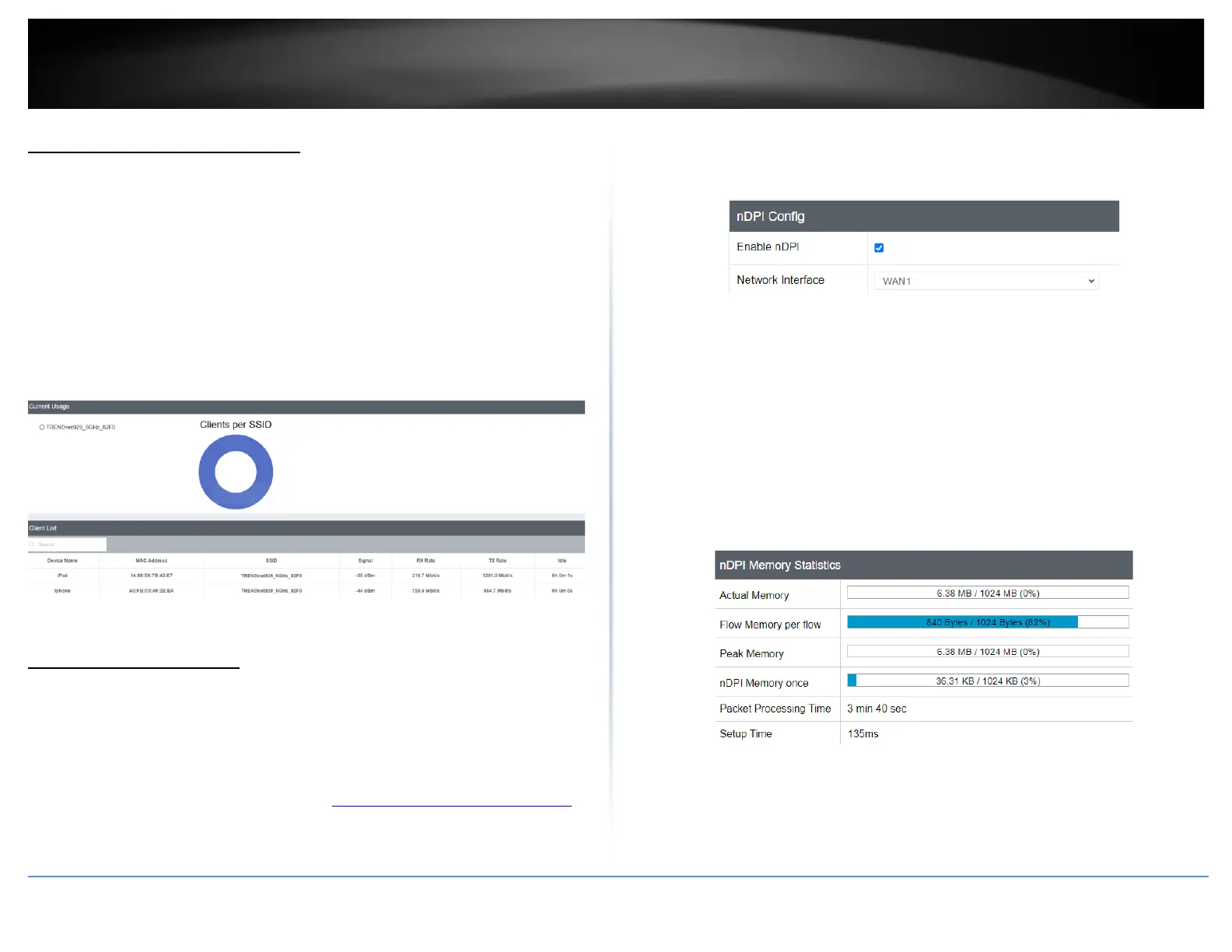
Check WiFi status information
Dashboard > Wireless 2.4GHz / Wireless 5GHz
Wireless Status Information
• Device Name – Displays the name of the device connected to the wireless band
• MAC Address – Displays the MAC address of the device connected to the
wireless band
• Signal – Displays the signal strength
• Rx Rate / Tx Rate – Displays the connection rate for Rx/Tx
• Idle – Displays the time the device is idled on the wireless band
Deep Packet Inspection
Dashboard > nDPI Statistics
Deep packet inspection is a feature that allows the router to inspect the type of data
being passed through the network.
1. Log into your router management page (see “Access your router management page”
on page 6).
2. Click on Dashboard, then click on nDPI Statistics
3. Click Enable nDPI to enable this feature
4. Select the Network Interface for nDPI to inspect
nDPI Memory Statistics
• Actual Memory – The current amount of memory utilization for nDPI and
typically the same as Peak Memory.
• Flow Memory per flow – The total amount of memory allocated per flow.
• Peak Memory – The maximum amount of memory used for nDPI in the current
session.
• nDPI Memory once – Memory utilized for the nDPI application.
• Packet Processing Time –Displays length of time nDPI has been enabled
• Setup Time – Displays the latency
Traffic Statistics
• Ethernet bytes – Displays the total data that has passed through in Bytes
• Discarded bytes – Displays the amount of discarded bytes








 To Next Page