• Enable client authentication – Checking this option will require additional
security by means of user name and password authentication in addition to the
standard encryption/authentication protocols. You will need to add a user
name and password under Client Authentication Account.
SSL VPN Client Setup (Windows)
1. Make sure to copy or move the configuration files downloaded from your router to
the VPN client computer and that your client computer has access to the Internet.
2. Download the appropriate OpenVPN software version for your operating system from
the following URL: https://openvpn.net/index.php/open-source/downloads.html
Note: Please note there is also a link in the description in the router management page
under Advanced > Setup > VPN.
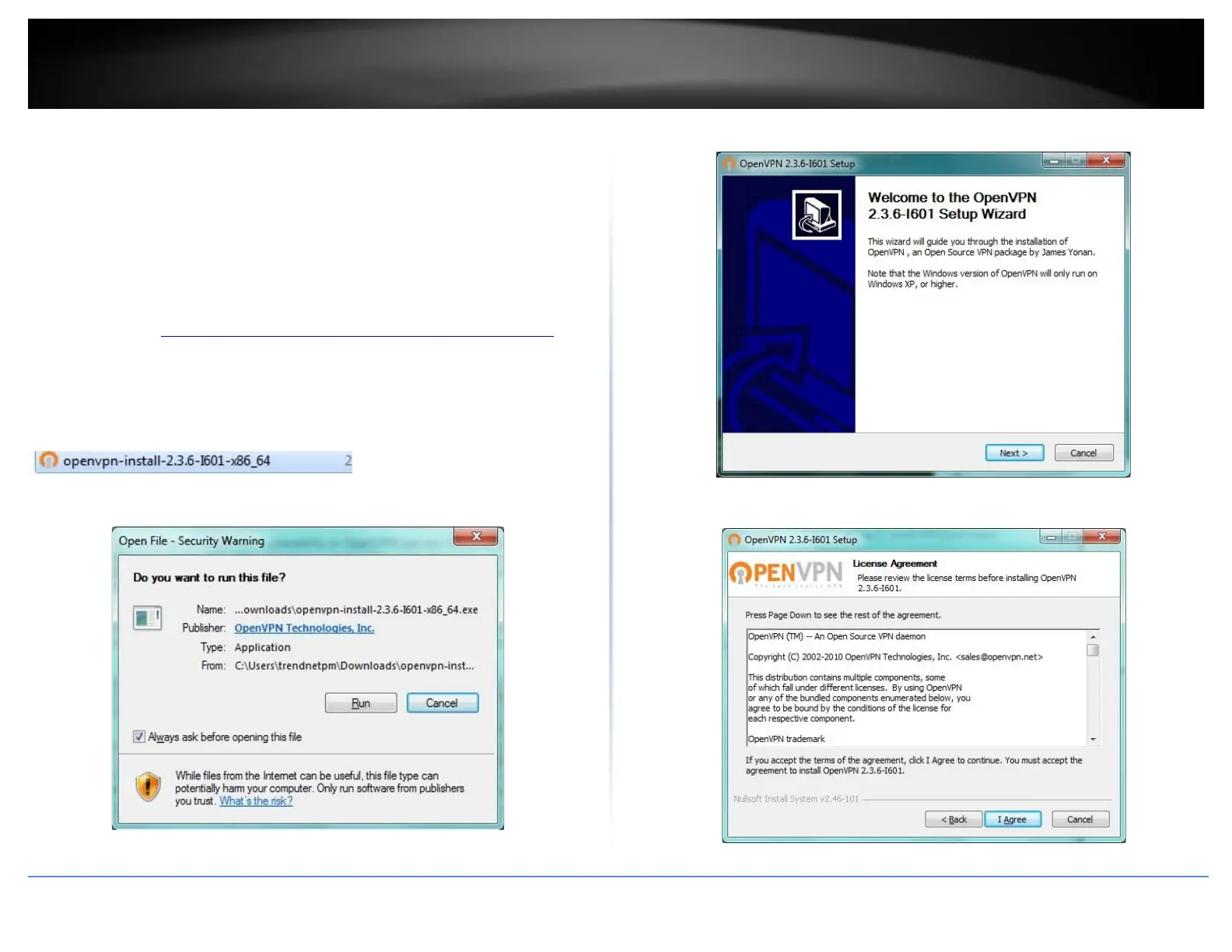
3. Once you have downloaded the software, navigate to the location where you
downloaded the file and double click to start the installation.
4. If prompted to run the file, click Run.
5. At the installation window, click Next.
6. At the license agreement window, review the license agreement and click I Agree.













 To Next Page