Wireless Networking and Security
Wireless Settings
Wireless > Wireless (2.4GHz or 5GHz)
This section covers the wireless settings of your router such as wireless network names
(SSIDs), channels, 802.11 mode, and other wireless settings.
1. Log into your router management page (see “Access your router management page”
on page 6).
2. Click on Network and click on the wireless band you would like to configure Wireless
(2.4GHz or 5GHz)
3. Review the settings below. When complete, click Apply to save and commit your
changes.
Primary SSID – This tab involves the configuration parameters for the primary SSID for a
specific wireless band.
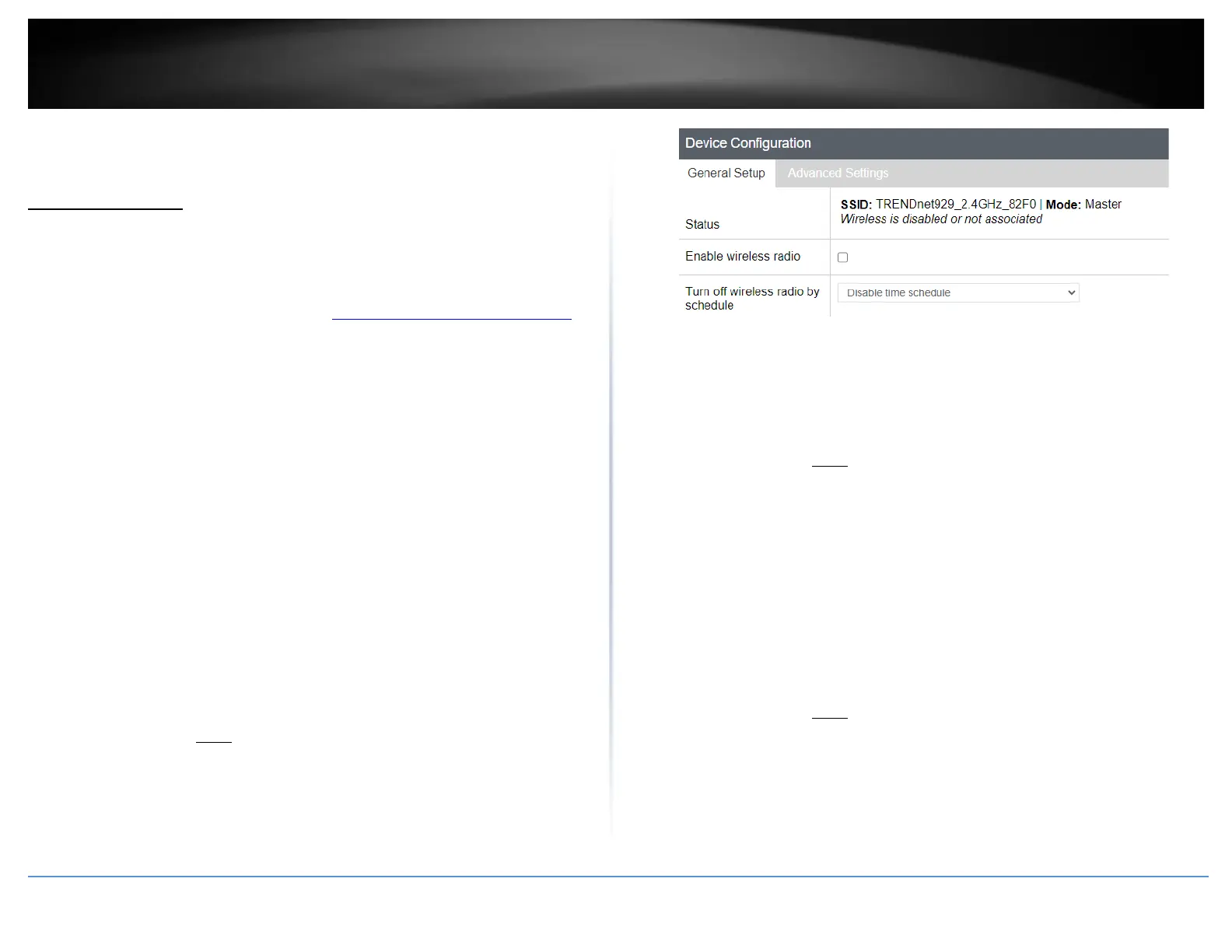
• Device Configuration
o General Setup
▪ Status – Displays current information about the wireless
radio/band such as SSID, BSSID/wireless MAC address,
encryption, operating channel, transmit power, bitrate, and
country/region.
▪ Enable wireless radio – This option is checked by default to
enable the wireless radio/band. Unchecking this option will
disable the wireless radio/band including all additional SSIDs
configured on the specific band.
▪ Turn off wireless radio by schedule – Allows you to assign a
time schedule when the band should be turned on and off.
Note: Modifying the channel settings will force currently
connected wireless client devices to disconnect and reconnect
to your router’s wireless networks.
o Advanced Settings
▪ Mode – By default, 802.11b/g/n and 802.11a/n/ac modes are
configured to ensure the best compatibility with wireless
client devices. These settings will allow all wireless client
devices to connect to you router’s wireless networks
including devices that support older standards such as
802.11a/b/g.
Note: If older slower wireless client devices connect to your
wireless network, this may reduce the speed and performance
of all other wireless client devices connecting to the same
wireless network.
▪ HT mode: Select the appropriate channel width for your
wireless network. For greater 2.4GHz performance/data rate
capability, you can select Auto 20/40MHz (Options: 20MHz or
Auto 20/40MHz). It is recommended to use the default
channel bandwidth settings.
For greater 5GHz performance/data rate capability, you can
select Auto 20/40/80MHz (Options: 20MHz, Auto 20/40MHz,
Auto 20/40/80MHz). It is recommended to use the default
channel width settings.
Note: Please note that the default settings may provide more
stability than the higher channel bandwidth settings such as
Auto 20/40MHz or Auto 20/40/80MHz for connectivity in busy
wireless environments where there are several wireless
networks in the area.
• 20 MHz – This mode operates using a single 20MHz
channel for wireless devices connecting at 802.11n
on both 2.4GHz and 5GHz. This setting may provide





 To Next Page