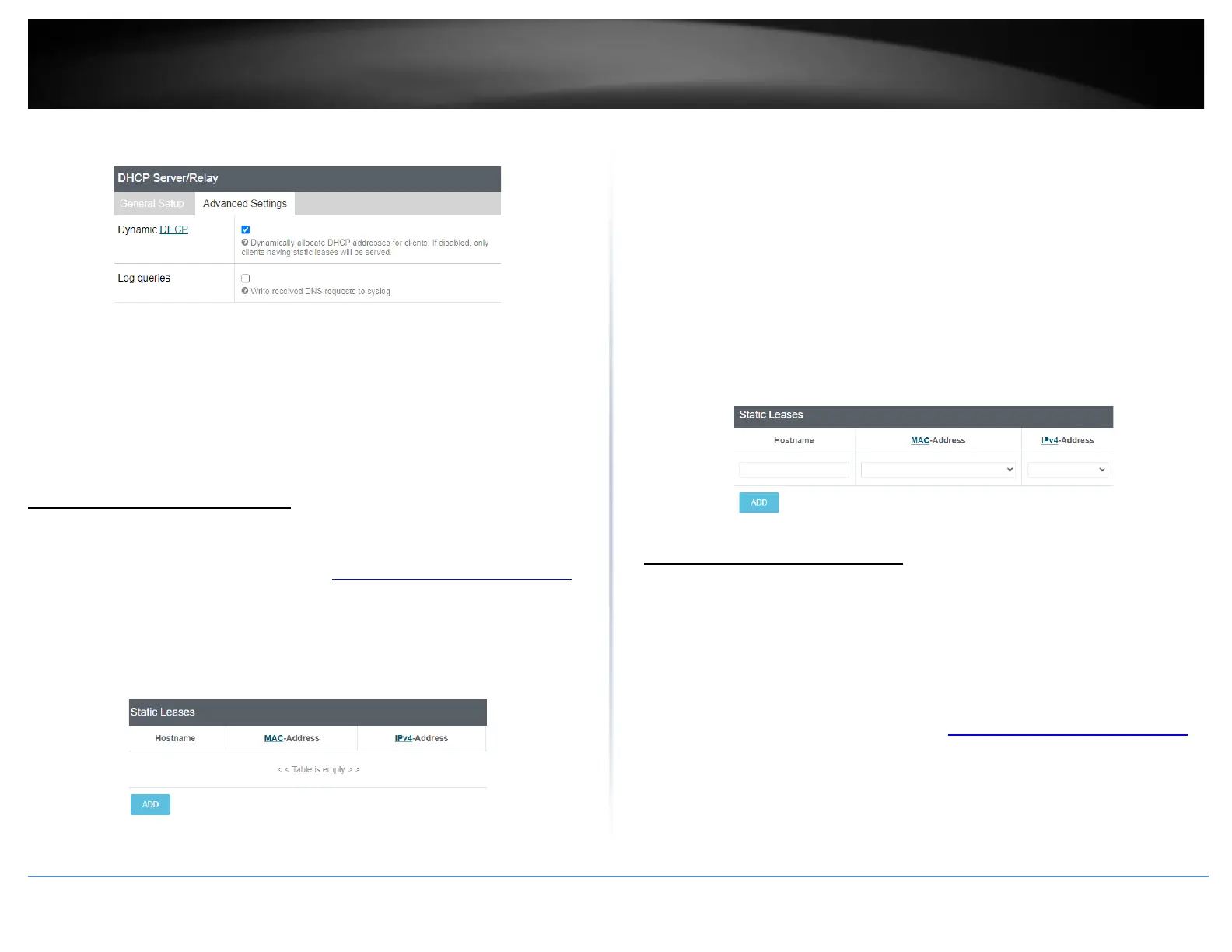
Advanced Settings
• Dynamic DHCP – Checking this option the enables the DHCP server to
distribute IPv4 address settings dynamically to clients. If this option is
unchecked, IPv4 address settings will only be assigned to DHCP clients with a
static DHCP reservation. Typically, this parameter does not need to be
modified.
• Log Queries – Checking this option will enable generate logging to internal or
syslog of any DNS queries. Typically, this parameter does not need to be
modified.
Add static DHCP reservations
Network > LAN
1. Log into your router management page (see “Access your router management page”
on page 6).
2. Click on Network and click LAN.
3. Under the Static Leases section, click Add.
4. Enter the parameters for the static DHCP reservation and click Apply to save and
commit the changes.
Note: The network device or computer the reservation is created will need to release and
renew the IPv4 address settings in order to obtain the new IP address settings.
• Hostname – Enter a name for the DHCP reservation. (e.g. trendnetpc)
• MAC-Address – Enter the MAC (Media Access Control) address of the
computer or network device to assign to the reservation. You can also click the
drop-down list to select from a list of network devices detected by the router
that have been assigned IPv4 address settings through DHCP. (e.g.
AA:BB:CC:DD:EE:FF)
• IPv4-Address – Enter the IPv4 address to assign to the computer or network
device for the reservation. You can also click the drop-down list to select from
list o of network devices detected by the router through DHCP. (e.g.
192.168.50.150)
Add static host name entries
Network > LAN
The router can be used for host name to IP address resolution of computers or network
devices on your local network similar to a WINS server however, entries will not
dynamically populate and each entry must be manually entered. For clients to resolve
the manually entered static entries, DHCP clients must use the router LAN IPv4 address
as the WINS server.
1. Log into your router management page (see “Access your router management page”
on page 6).
2. Click on Network and click LAN.
3. Under the Host Entries section, click Add.





 To Next Page