Below is a reference of the additional settings if you choose to make other configuration
changes to these sections. Review the settings below. When complete, click Apply to
save and commit your changes.
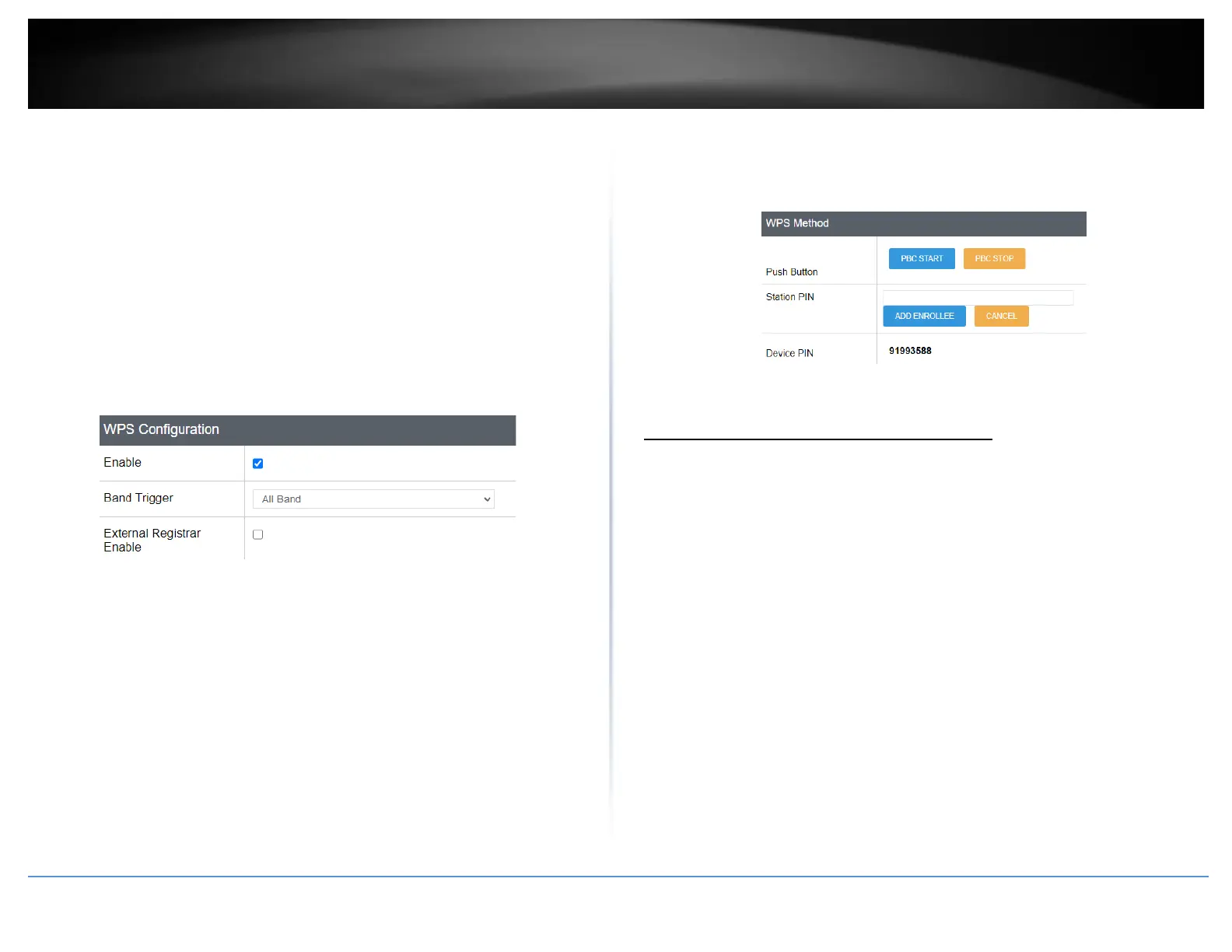
WPS Configuration
• Enable – Check this option to enable WPS or uncheck to disable WPS.
• Band Trigger – Click the drop-down list to select which wireless band to trigger
and activate for WPS connectivity. Select the wireless band and click Apply first
before initiating WPS connection to a wireless client device.
• External Registrar Enable – By default, the router functions in WPS registrar
mode. In WPS client connectivity, one device functions as a registrar and the
other functions as an enrollee. Checking this option will allow the router to
function enrollee mode instead of registrar mode. For security purposes, it is
recommended to leave this settings unchecked/disabled.
WPS Method
• Push Button
o PBC Start/PBC Again – Clicking this button will activate WPS.
o PBC Stop – Clicking this button will stop the WPS process.
• Station PIN – Enter the wireless client device 8 digit WPS PIN number and click
ADD ENROLLEE to activate WPS via PIN.
• Device PIN – This displays the router current WPS PIN. Wireless client devices
may have the ability to enter the PIN of the wireless router/access point you
would like to connect. Instead of entering the wireless client device PIN under
station PIN, you can enter the router device PIN in the wireless client device to
activate WPS via PIN method.
WPS Status
• Current Status – Displays the current WPS process status.
• Network Name(SSID) – Displays the current wireless network name for each
wireless band.
• Security – Displays the current security used on each wireless band.
• Status – Displays the current configuration status of WPS on the router.
Steps to improve wireless connectivity
There are a number of factors that can impact the range of wireless devices. Follow
these tips to help improve your wireless connectivity:
1. Keep the number of obstructions to a minimum. Each obstruction can reduce
the range of a wireless device. Position the wireless devices in a manner that
will minimize the amount of obstructions between them.
a. For the widest coverage area, install your router near the center of
your home, and near the ceiling, if possible.
b. Avoid placing the router on or near metal objects (such as file cabinets
and metal furniture), reflective surfaces (such as glass or mirrors), and
masonry walls.
c. Any obstruction can weaken the wireless signal (even non-metallic
objects), so the fewer obstructions between the router and the
wireless device, the better.
d. Place the router in a location away from other electronics, motors,
and fluorescent lighting.





 To Next Page