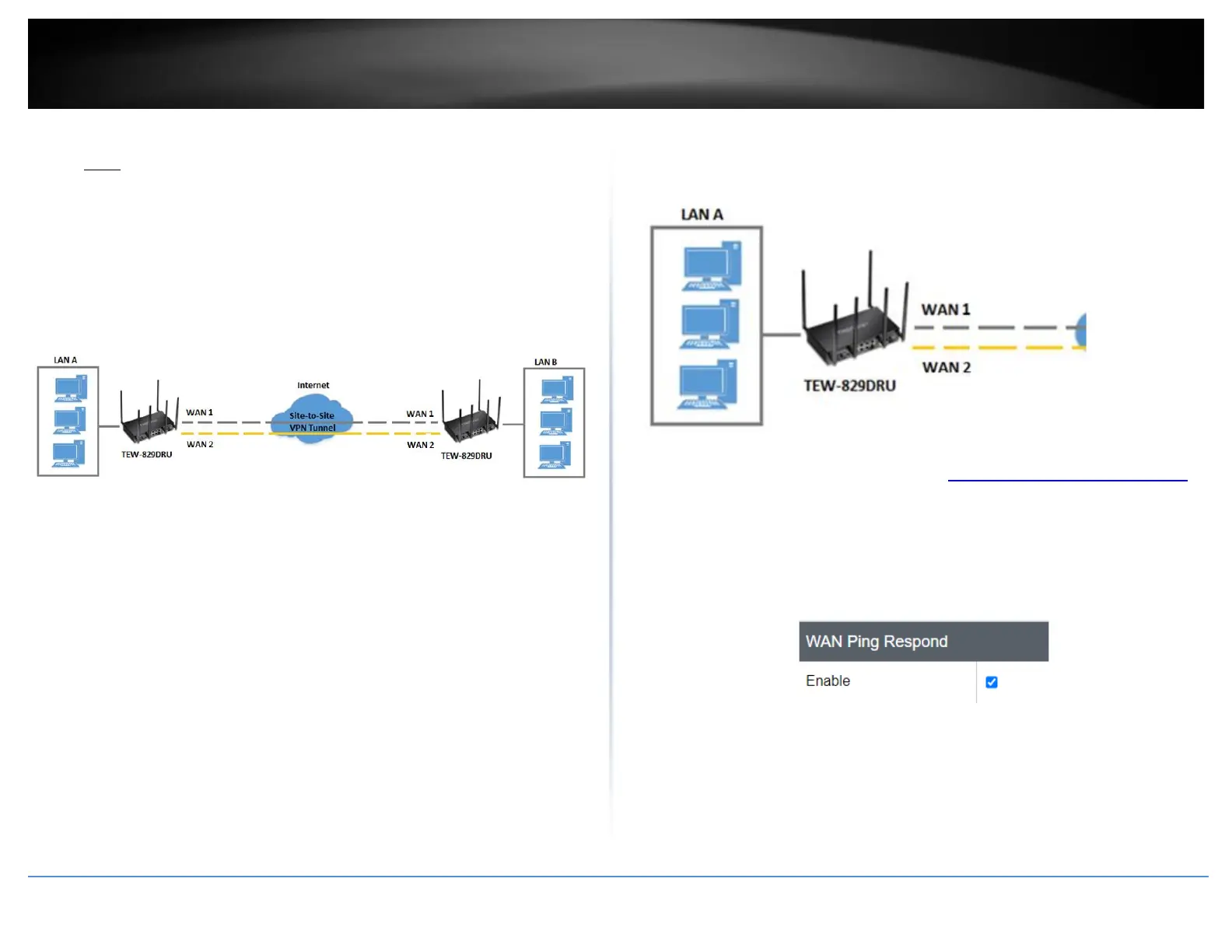
Setting up IPsec site-to-site VPN Failover (PSK)
• Note: IPsec VPN failover is only supported on firmware 1.0.0.33 or above. This
configuration will only work when multiple WAN configuration is set to WAN1
(Failover to WAN2), WAN2 (Failover to WAN1), Load Balance (weight cannot be
set to 50%:50%).
Network > VPN > IPsec
VPN failover configuration allows you to add redundancy/fault tolerance to your IPsec
VPN tunnel connectivity.
To configure and IPsec site-to-site VPN tunnel failover with pre-shared key (PSK)
between two routers:
• Ensure that your router is connected to the Internet and computers and
devices are able to access the Internet through the WAN1 and WAN2 interfaces
on your router and make note of the WAN1 and WAN2 IP addresses assigned
to both routers under the Status > Overview page. In this example, we will
assume the following static IP WAN info. and LAN IP settings below.
Example:
VPN Router A WAN1 (Internet) IP Address: 10.10.10.85 / 255.255.255.192
VPN Router A WAN2 (Internet) IP Address: 10.10.10.130 / 255.255.255.192
VPN Router B WAN1 (Internet) IP Address: 172.16.0.1 / 255.255.255.192
VPN Router B WAN1 (Internet) IP Address: 172.16.0.62 / 255.255.255.192
• Make sure the LAN IP network on each VPN router is a different IP subnet.
Note: Changing the LAN IP address of your router will change the LAN IP
network of your router.
Example:
VPN Router A LAN IP Settings: 192.168.200.1 / 255.255.255.0
VPN Router B LAN IP Settings: 192.168.210.1 / 255.255.255.0
VPN Router A Configuration
1. Log into your router management page (see “Access your router management page”
on page 6).
2. Click on Security, click Firewall, and click the General Settings tab.
3. Check the Enable under WAN Ping Respond and click Apply to save and commit the
configuration changes.
4. Click on Multi-WAN/QoS and click on Multi WAN.
5. Under the Link Tracking section, check Enable Tracking on both WAN1 and WAN2,
and enter an IP address or IP addresses on the Internet to check for connectivity and











 To Next Page