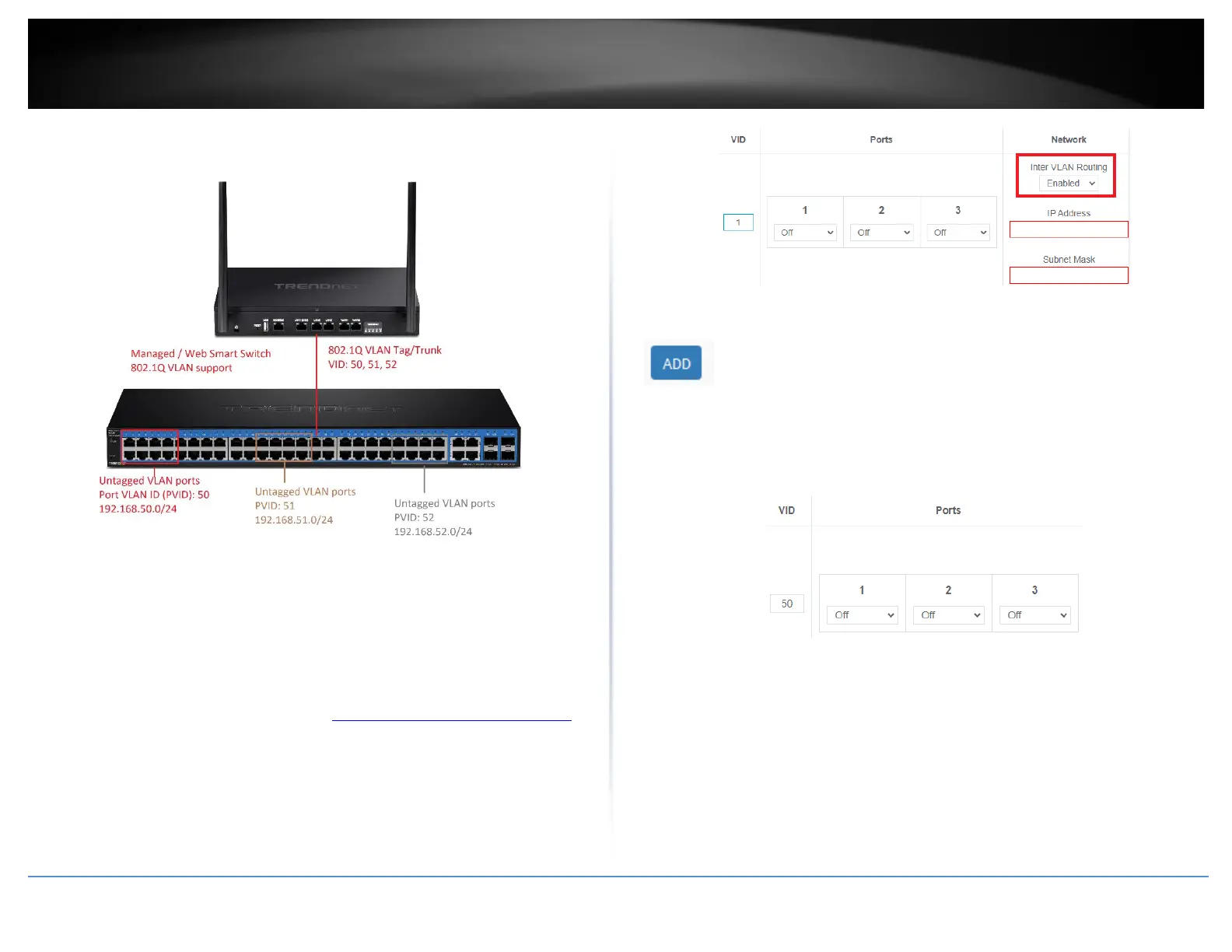
Example below of multiple VLANs configured and passing traffic through the same
802.1Q VLAN tag/trunk link.
Assigning VLAN IDs to Wireless SSIDs
Your router supports assigning specific VLAN IDs to wireless SSIDs to extend VLAN traffic
manageability and control to your router wireless network. By default, primary and
multiple SSIDs are assigned to the LAN (VLAN 1) IP network.
1. Log into your router management page (see “Access your router management page”
on page 8).
2. Click on Network and click VLAN.
3. Under VLAN VID:1 (LAN), click the Inter VLAN Routing drop-down list and select
Enabled and click Apply to commit and save the changes.
4. To create a new 802.1Q VLAN, under the VLANs section, click Add.
5. Under VID, enter the VLAN ID to assign to the new VLAN (4-4094, VLAN IDs 1-3 are
reserved for use with the default LAN, WAN1, WAN2 interfaces) and set the tagged
VLAN member port. Example: In the example below, we will create a new VLAN with
VLAN ID: 50 and assign port 8 as a tagged VLAN member port.
6. Enter the VLAN IP interface configuration under IP Address and Subnet Mask.
Example: In the example below, we will enter the VLAN 50 interface IP address as
192.168.50.1 and subnet mask 255.255.255.0.







 To Next Page