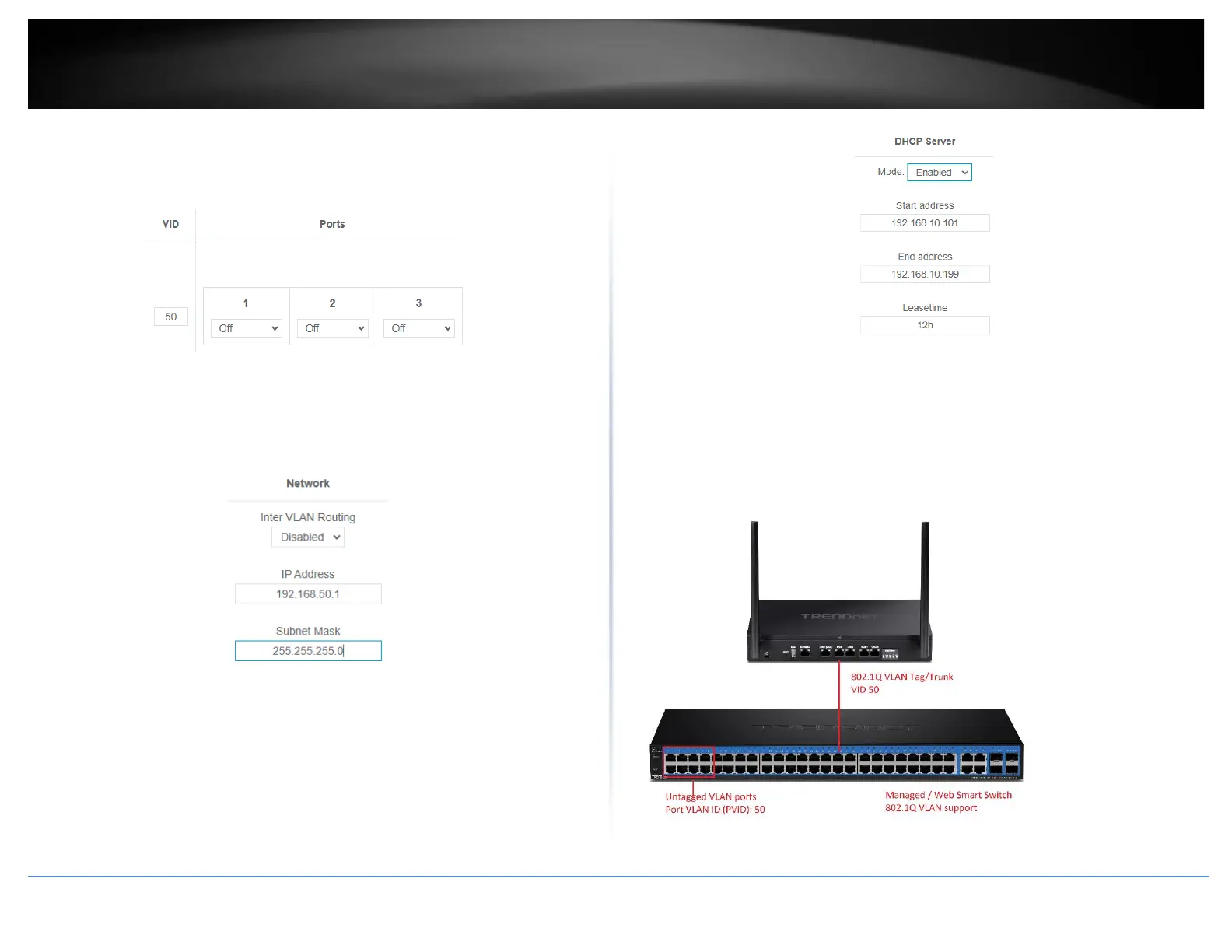
5. Under VID, enter the VLAN ID to assign to the new VLAN (4-4094, VLAN IDs 1-3 are
reserved for use with the default LAN, WAN1, WAN2 interfaces) and set the tagged
VLAN member port. Example: In the example below, we will create a new VLAN with
VLAN ID: 50 and assign port 8 as a tagged VLAN member port.
6. Enter the VLAN IP interface configuration under IP Address and Subnet Mask.
Example: In the example below, we will enter the VLAN 50 interface IP address as
192.168.50.1 and subnet mask 255.255.255.0.
7. Under DHCP Server, click the Mode drop-down list and select Enabled to enable the
DHCP server on the VLAN. Click Apply to save and commit the changes.
Example: In the example below, we will enable the DHCP server on VLAN 50 and leave IP
address range and lease defaults. This will assign a DHCP IP range of 101-199 to ensure
any devices connected to this VLAN obtain IP address information via DHCP.
If following the 802.1Q VLAN configuration example, a managed/web smart switch with
802.1Q VLAN support can be connected and pass VLAN 50 traffic between the router
and switch. Any computers or devices connecting to the untagged VLAN ports (PVID: 50)
on the managed/web smart will obtain 192.168.50.x/255.255.255.0 address settings
and use the VLAN 50 IP interface 192.168.50.1 as the Internet gateway and gateway to
other local IP subnets. Additional VLANs can be created on the router and switch in
which 802.1Q VLAN traffic can pass through the same single 802.1Q VLAN tag/trunk
link.





 To Next Page