Setting up the L2TP VPN client (Windows) with IPsec encryption (PSK)
Note: This procedure provides a basic example how to setup L2TP with IPsec VPN and
establish connectivity using a Windows® 10 client computer. If you are using a different
operating system or mobile device, please refer to the user’s guide/manual of the third
party operating system or device on configuring L2TP with IPsec VPN. The L2TP with
IPsec VPN settings must match with the settings configured on the router.
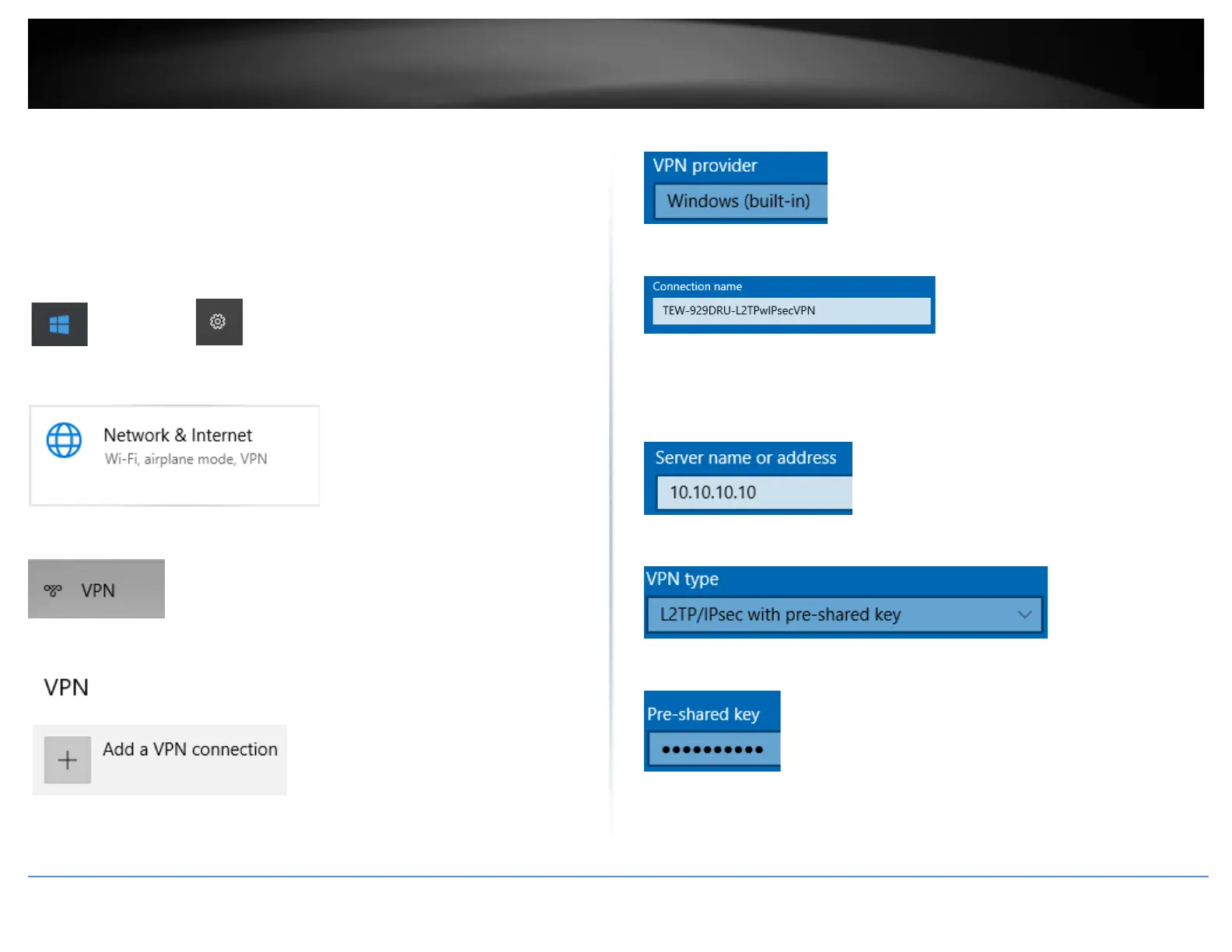
1. Click the Start button and click the Settings icon.
Start Button Settings icon
2. Click Network & Internet.
3. Click VPN in the left panel.
4. Under VPN, click Add a VPN connection.
5. Click the VPN provider drop-down list and select Windows (built-in).
6. Enter a name in the Connection name field.
7. Enter the Internet WAN IP address, DNS, or dynamic DNS hostname of your router to
connect over the Internet. In the example below, the Internet WAN IP address of the
router is 10.10.10.10. In your router, you can check the WAN IP address under Status
> Overview, under Network in the IPv4 status section.
8. Click the VPN type drop-down list and select L2TP/IPsec with pre-shared key.
9. Enter the IPsec pre-shared key (PSK).
10. Click the Type of sign-in info drop-down list and select User name and password.












 To Next Page