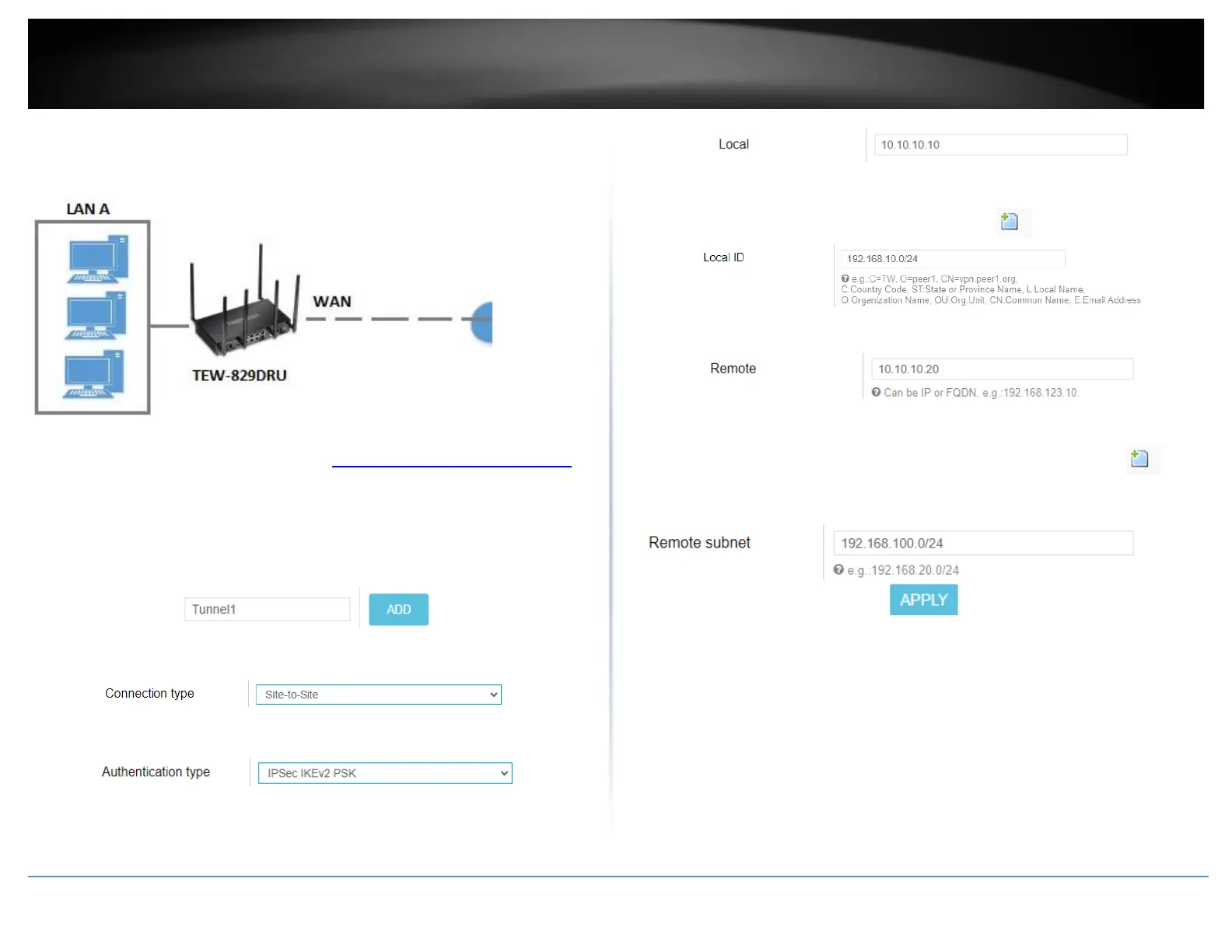
VPN Router A Configuration
1. Log into your router management page (see “Access your router management page”
on page 6).
2. Click on Network, click VPN, and click the IPsec tab.
3. Under Overview, enter a tunnel name and click Add. (e.g. Tunnel1)
4. Click the Connection type drop-down list and select Site-to-Site.
5. Click the Authentication type drop-down list and select IPSec IKEv2 PSK.
6. In the Local field, enter the local WAN1 IP address. (e.g. 10.10.10.10) This can also be
a domain name (ex: dynamic DNS host name)
7. In the Local subnet field, enter the local LAN IP subnet. (e.g. 192.168.10.0/24) You
can add additional local subnets by click the add icon (e.g. 192.168.20.0/24)
8. In the Remote field, enter the remote WAN1 IP. (e.g. 10.10.10.20) This can also be a
domain name (ex: dynamic DNS host name)
9. In the Remote subnet field, enter the remote LAN IP subnet. (e.g. 192.168.100.0/24)
and click Apply. You can add additional local subnets by click the add icon (e.g.
192.168.120.0/24)










 To Next Page